
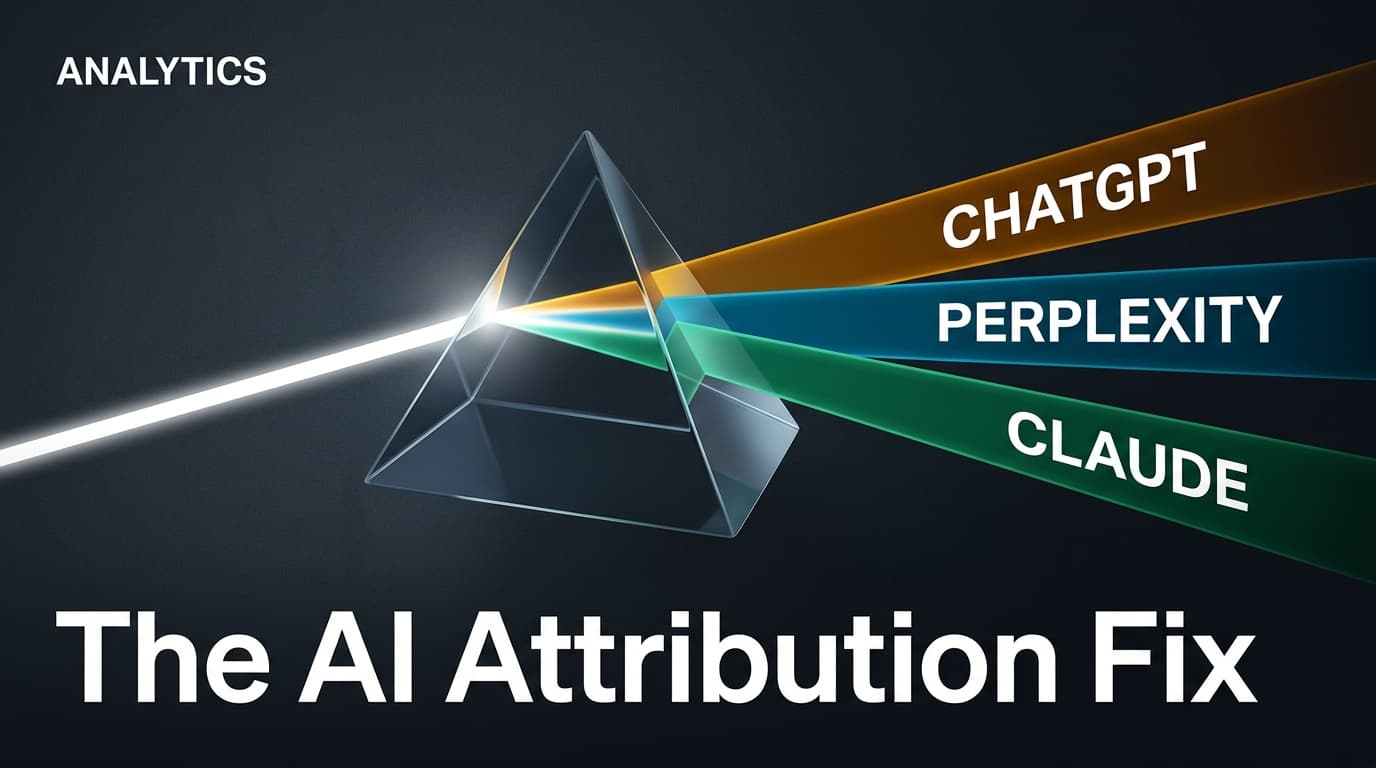
If you are looking at your Google Analytics 4 (GA4) traffic acquisition report and seeing a trickle of referrals from OpenAI or Perplexity, you're likely only seeing 30% of the actual picture. The problem isn't that users aren't clicking through from LLMs; the problem is that GA4's default channel grouping is fundamentally broken for the generative AI era.
Currently, GA4 fragments AI-driven traffic into three distinct, often unrelated buckets: 'Referral', 'Organic Search', and the dreaded 'Direct'. Because platforms like Claude and ChatGPT often strip referrer headers or use unique subdomains that haven't been categorized by Google's primary library yet, your Answer Engine Optimization (AEO) efforts look like a failure on paper. By the end of this guide, you will have a unified, automated dashboard that captures every click from the major AI players, allowing you to prove the ROI of your AI-first content strategy.
Before you start, ensure you have 'Editor' or 'Administrator' access to your GA4 property. You'll also need a list of the current referral domains used by the big three: OpenAI, Anthropic, and Perplexity.
Step 1: Audit your current 'Unassigned' and 'Referral' traffic
Before building a new bucket, you have to find where the leaks are. Most marketers don't realize that Perplexity traffic often shows up as 'Organic Search' because Google recognizes it as a search engine, while ChatGPT traffic is frequently dumped into 'Referral' or 'Unassigned' depending on the browser's security settings.
Go to Reports > Acquisition > Traffic acquisition. Add a secondary dimension for 'Session source/medium'. Look for strings like chatgpt.com, openai.com, or perplexity.ai. You'll notice they aren't grouped under a single 'AI' banner. This fragmentation makes it impossible to compare AI performance against Social or Paid Search.
Why it matters: Without a unified view, you can't calculate the conversion rate of AI-referred users. Early data suggests AI users often have higher 'Information Gain'—a concept highlighted in a July 2026 Search Engine Journal report on how Google understands unique content—meaning they arrive with higher intent than a standard social scroller.
Common pitfall: Don't just look at the 'Source' column. Some AI browsers mask the source entirely. You need to look for specific URL parameters if you’ve been using tracking links in your AI prompts.
Step 2: Define a Custom Channel Group for AI
GA4 allows you to create 'Custom Channel Groups'. This is the most powerful way to fix attribution because it doesn't change your historical data; it just changes how that data is labeled moving forward.
Navigate to Admin > Data Settings > Channel Groups. Click on 'Create new channel group'. You’ll want to base this on the 'Default Channel Group' so you don't have to rebuild everything from scratch. Name this new group 'AI-Enhanced Channels'.
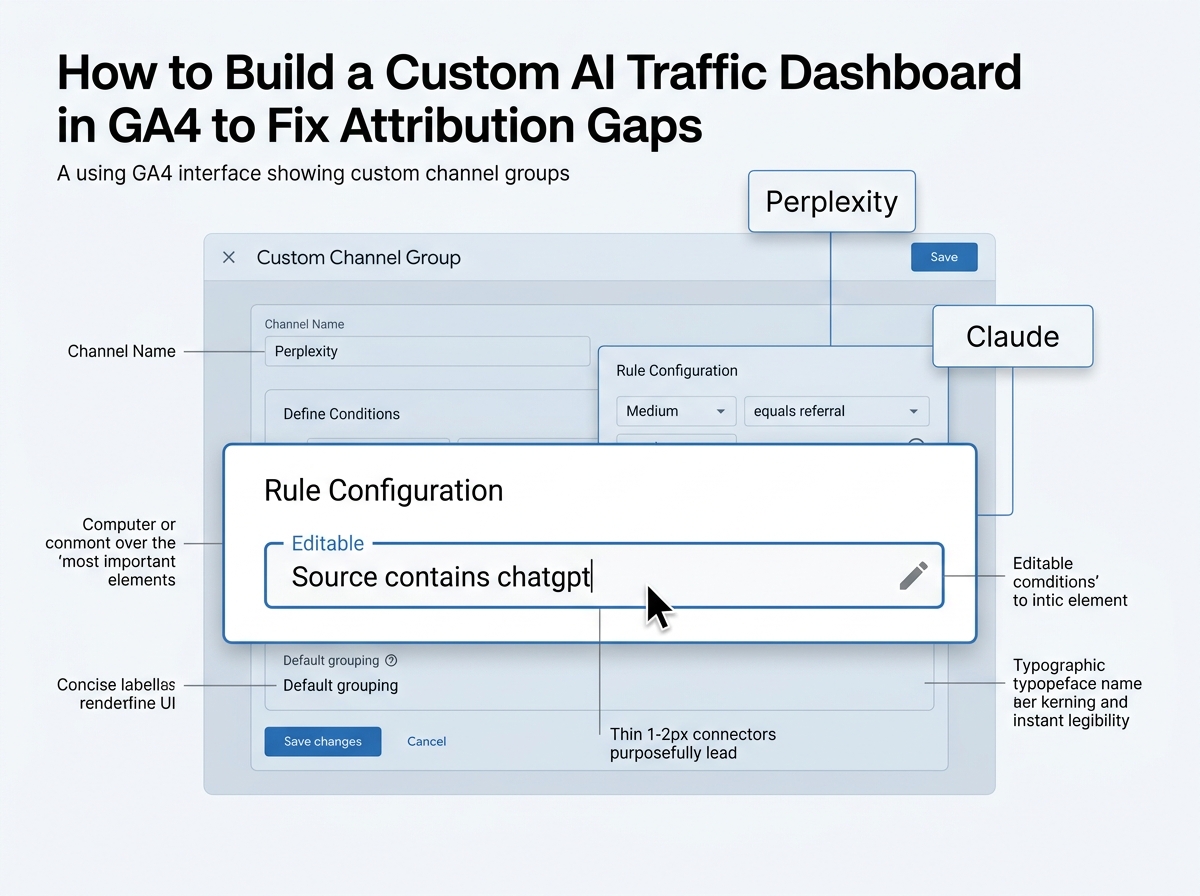
Add a new channel called 'AI Assistants'. You will need to set up specific rules. Use the 'OR' logic to include:
- Source contains
chatgpt - Source contains
openai - Source contains
perplexity - Source contains
anthropicorclaude - Source contains
gemini.google.com
Why it matters: By creating a dedicated 'AI Assistants' channel, you pull these sources out of the generic 'Referral' bucket. This allows you to see the aggregate growth of AI traffic alongside your traditional Social and Search channels.
Common pitfall: Avoid using 'Exact Match' for sources. AI platforms change their referral subdomains frequently (e.g., chat.openai.com vs chatgpt.com). Using 'Contains' ensures you capture the variations.
Step 3: Map AI Social Referrals and In-App Browsers
Social attribution is getting harder. When a user shares a ChatGPT transcript on TikTok or LinkedIn, and a second user clicks a link within that transcript, the attribution often breaks. If you're working with an in-house agency—a trend Adweek noted is becoming a 'strategic play' rather than just a cost-cutting move—you need to provide them with clean data on how social-to-AI-to-site loops function.
In your Custom Channel Group, you should also create a rule for 'AI-Social'. This captures traffic that comes from AI platforms but carries social UTM parameters. This is common when creators use AI to summarize your long-form reports and then link back to you.
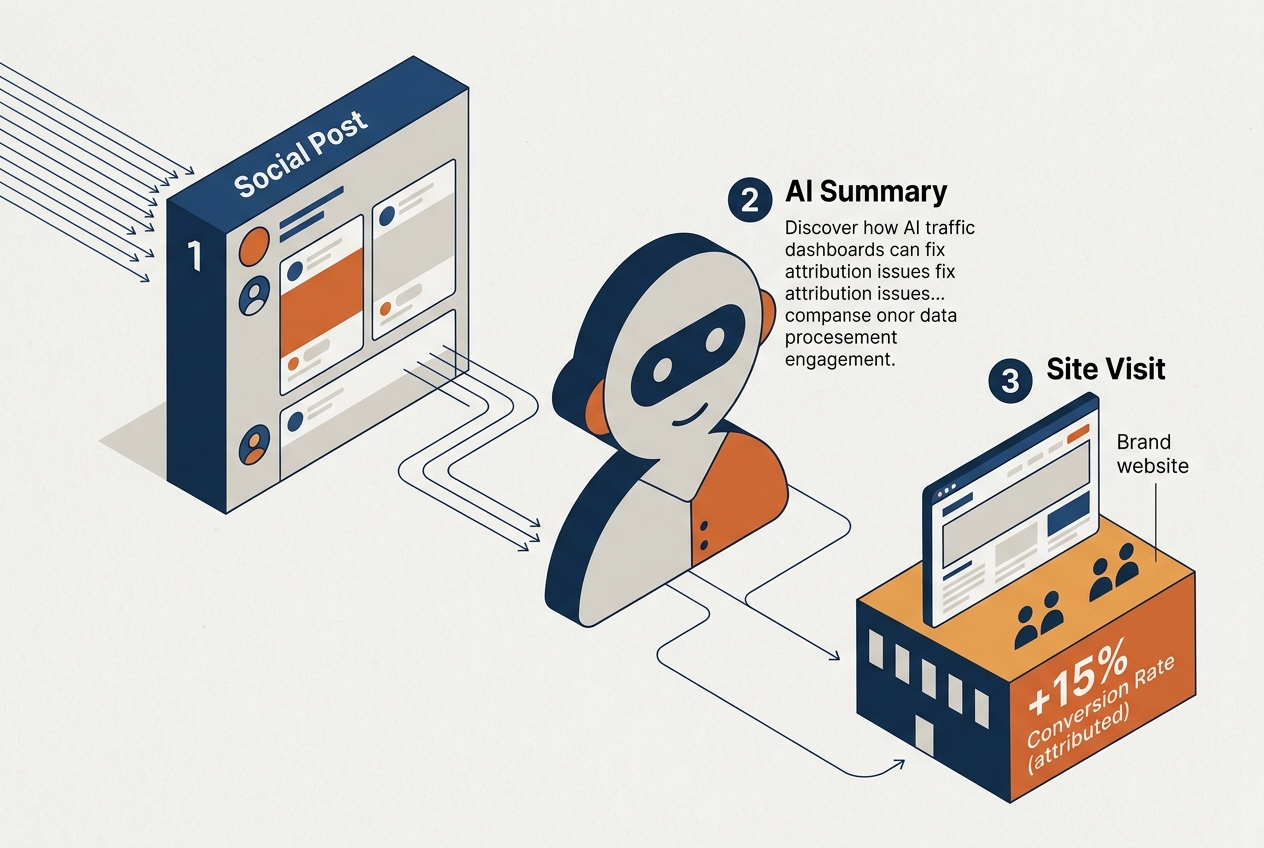
Why it matters: It prevents your AI traffic from being misattributed to 'Organic Social'. You want to know if the user came because of your post or because an AI recommended your post.
Common pitfall: Over-complicating the regex. Keep your rules simple. If you try to catch every single niche AI startup, you’ll end up with a maintenance nightmare. Stick to the top 5 players who command 90% of the market share.
Step 4: Build the AI Performance Exploration Dashboard
The standard reports are fine for a quick glance, but for a deep dive, you need the Explorations tab. Create a new 'Blank' exploration.
Set your rows to 'Session custom channel group' (the one you created in Step 2) and your values to 'Sessions', 'Engagement Rate', and 'Key Events' (formerly Conversions).
Add a filter to only show your 'AI Assistants' channel. Now, add 'Page path' as a nested row. This shows you exactly which pages on your site are being recommended by AI engines.
Why it matters: This is the heart of your AEO strategy. If you see that Perplexity is sending traffic to your 'How-to' guides but ChatGPT is sending people to your 'Pricing' page, you can tailor your content optimization accordingly.
Common pitfall: Forgetting to set the date range to at least 90 days. AI traffic is still a small percentage for most brands; you need a wider window to see statistically significant trends in engagement rate.
Step 5: Verification and Data Validation
You’ve built the rules, but are they working? The easiest way to verify is to use the Realtime report. Open ChatGPT or Perplexity, ask it to find a specific article on your site, and click the link it provides.
Back in GA4, look at the 'Realtime' view. Under 'Source', you should see the AI domain. Then, check your 'User acquisition' report the next day. If the traffic appears under your new 'AI Assistants' channel instead of 'Unassigned', your logic is sound.
Why it matters: Data integrity is the difference between a strategist and a guesser. If you can't verify the source, you can't defend your budget.
Common pitfall: Expecting instant results. GA4 can take 24-48 hours to fully process and categorize data into custom channel groups in the standard reports, even if it shows up correctly in Realtime.
Next Steps: Expanding Your AI Strategy
Once your dashboard is live, don't just sit on the data. Use it to refine your broader marketing mix.
- AEO Content Optimization: Look at the pages receiving the most AI traffic. Analyze them for 'Information Gain' per the Google patent standards. Are you providing unique data that an LLM can easily cite?
- In-House Synergy: If you are part of an in-house team, use this data to bridge the gap between SEO and Social. Show how your social clips are being picked up by AI engines to drive high-intent traffic.
- Paid AI Experimentation: As platforms like Amazon exceed upfront volume goals (per Adweek's July 2026 reporting), expect AI engines to roll out more robust ad products. Your custom dashboard will be the baseline you use to measure the lift from these new paid placements.
Tracking AI traffic isn't about chasing a fad; it's about closing the gap in the modern customer journey. The users coming from these engines are often the most informed leads you'll get all month. Treat them that way by measuring them correctly.
FAQ