
Instagram has finally broken one of its most frustrating creative constraints. For years, once you hit 'Share' on a Reel, the audio was locked in stone. If a song was later removed due to licensing disputes—a common occurrence for brands using commercial tracks—your high-performing content was left in a silent, engagement-killing void. That era is over. According to recent platform updates [S4], Instagram now allows users to swap audio on existing posts, fundamentally changing how we manage evergreen social libraries.
This isn't just a utility for fixing broken posts; it's a strategic lever for audience retention. By the time you finish this guide, you will be able to audit your existing Reel catalog, identify posts suppressed by 'audio fatigue,' and swap in high-BPM or trending tracks to trigger a second wave of algorithmic distribution. Before you start, ensure your Instagram app is updated to the latest version (v340.0 or higher) and that you have a list of your top 10 historical Reels by reach.
TL;DR
- The Feature: Instagram now lets you 'Change Music' on published Reels via the 'Edit' menu.
- The Strategy: Use this to fix muted videos and refresh evergreen content that has stalled in the feed.
- The Warning: Swapping audio does not reset your views, but it can re-trigger the Explore page algorithm if the new audio is currently trending.
Step 1: Identify your 'Silent Killers' and fatigue-heavy posts
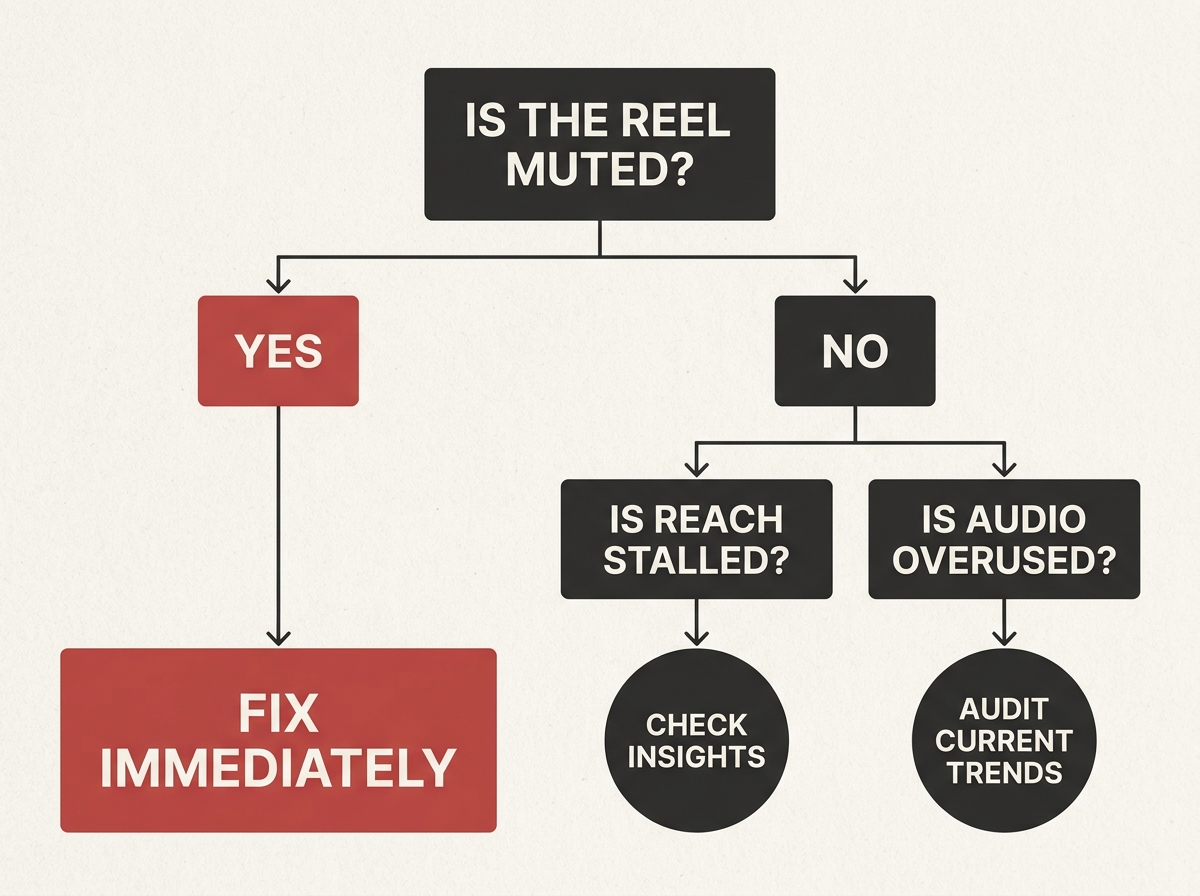
Before diving into the technical swap, you must perform a content audit. Not every Reel deserves a music change. You are looking for two specific categories of content. First, the 'Silent Killers'—posts that have been muted due to copyright shifts. These are catastrophic for your brand's 'source of truth' [S3], as they present a broken user experience to new profile visitors. Second, identify posts that used a trending audio that has since 'peaked.'
Social media managers often see a sharp drop-off in reach once a song moves from 'rising' to 'overused.' Per internal benchmarks from major agencies, once a track hits the 500k-use mark, its ability to drive discovery via the audio page diminishes. You're looking for Reels that still have high 'Save' rates but declining 'Reach.' These are your prime candidates for a high-BPM refresh. High-BPM (beats per minute) tracks typically correlate with higher completion rates in short-form video because they encourage faster cutting and visual momentum.
Common Pitfall: Don't swap audio on a Reel that is currently viral. If it ain't broke, don't fix it. Changing the audio resets the 'audio page' association, which could kill an active viral loop.
Step 2: Access the 'Change Music' interface
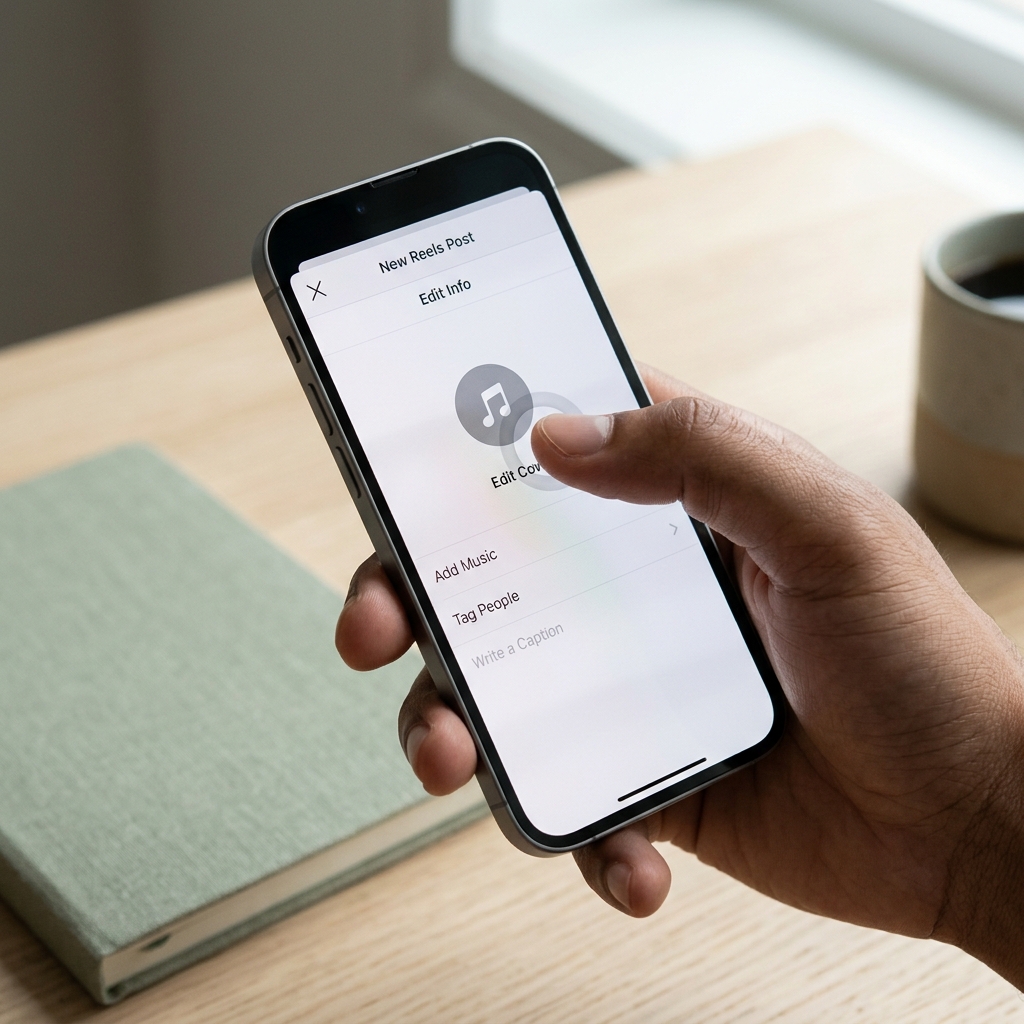
Navigate to the specific Reel you wish to update. Tap the three dots (...) in the top right corner of the Reel or the bottom right, depending on your UI version. Select 'Edit.' In the top left corner of the preview screen, you will now see a music note icon or a prompt that says 'Change Music.'
This interface is distinct from the initial posting flow. Instagram's goal here is to keep you within the app rather than forcing you to use external AI video editors [S5] to re-render and re-upload content. When you tap this, Instagram will pull up its standard music library. However, there is a catch: you cannot currently use 'Original Audio' from other creators in this specific 'Edit' mode—you are limited to the licensed music library or your own saved commercial tracks.
Why this matters? It allows for a 'Brand Sovereignty' approach to content [S3]. Instead of letting a dead trend drag down your profile's aesthetic, you can pivot to a more timeless instrumental or a new licensed hit that aligns with your current campaign, such as American Eagle’s recent shift toward fragmented Gen Z subcultures [S1].
Common Pitfall: If you don't see the 'Change Music' option, your Reel might be part of an active 'Paid Partnership' or an ad campaign. Meta typically locks these assets to prevent bait-and-switch tactics with licensed music in advertising.
Step 3: Align the new audio with existing visual transitions
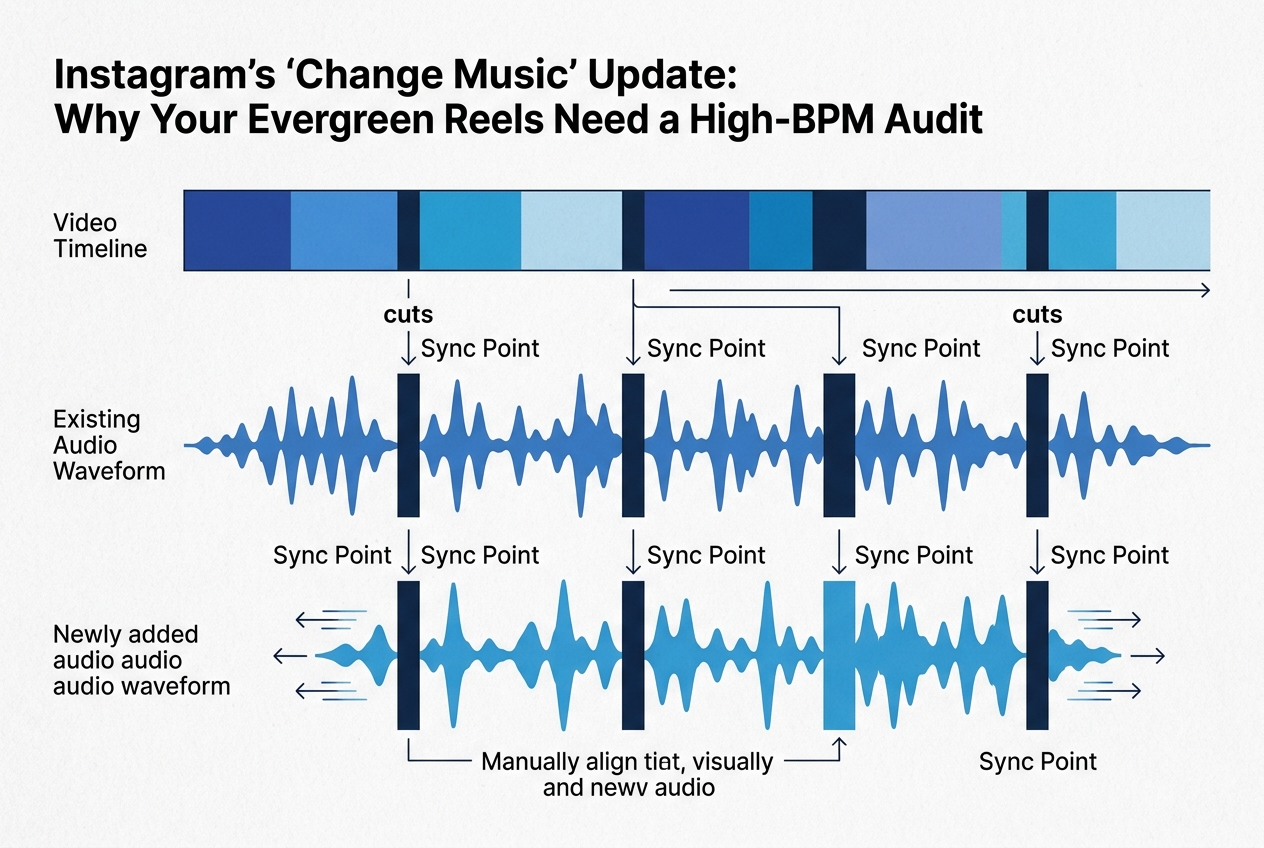
This is the most technical part of the process. Because you are swapping audio onto a video that was already edited to a specific beat, you must find a track with a similar tempo or 'vibe.' If your original Reel was a fast-paced 'outfit transition' video, swapping a slow ballad will make the visuals feel jarring and amateurish.
Use the 'Preview' function within the Edit menu to see how the new track lands. Instagram's tool allows you to slide the waveform to select the exact 15, 30, or 60-second clip you want. Pay close attention to the 'drops.' If your video has a visual 'reveal' at the 5-second mark, your new audio must have a percussive shift at that exact same timestamp. This is why a 'High-BPM Audit' is essential—faster tracks give you more 'on-beat' moments, making it easier to find a match for your existing cuts.
Common Pitfall: Forgetting to adjust the volume mix. If your Reel has a voiceover (VO) or original environmental sound, ensure the new music is set to a lower volume (typically 10-15%) so it doesn't drown out the speech. The 'Edit' menu allows you to balance these levels individually.
Step 4: Update captions and hashtags for the new context
Changing the music often changes the 'mood' of the content. If you've swapped a summer anthem for a moody lo-fi track to appeal to a different subculture—much like how American Eagle targets different Gen Z segments [S1]—your caption needs to reflect that shift.
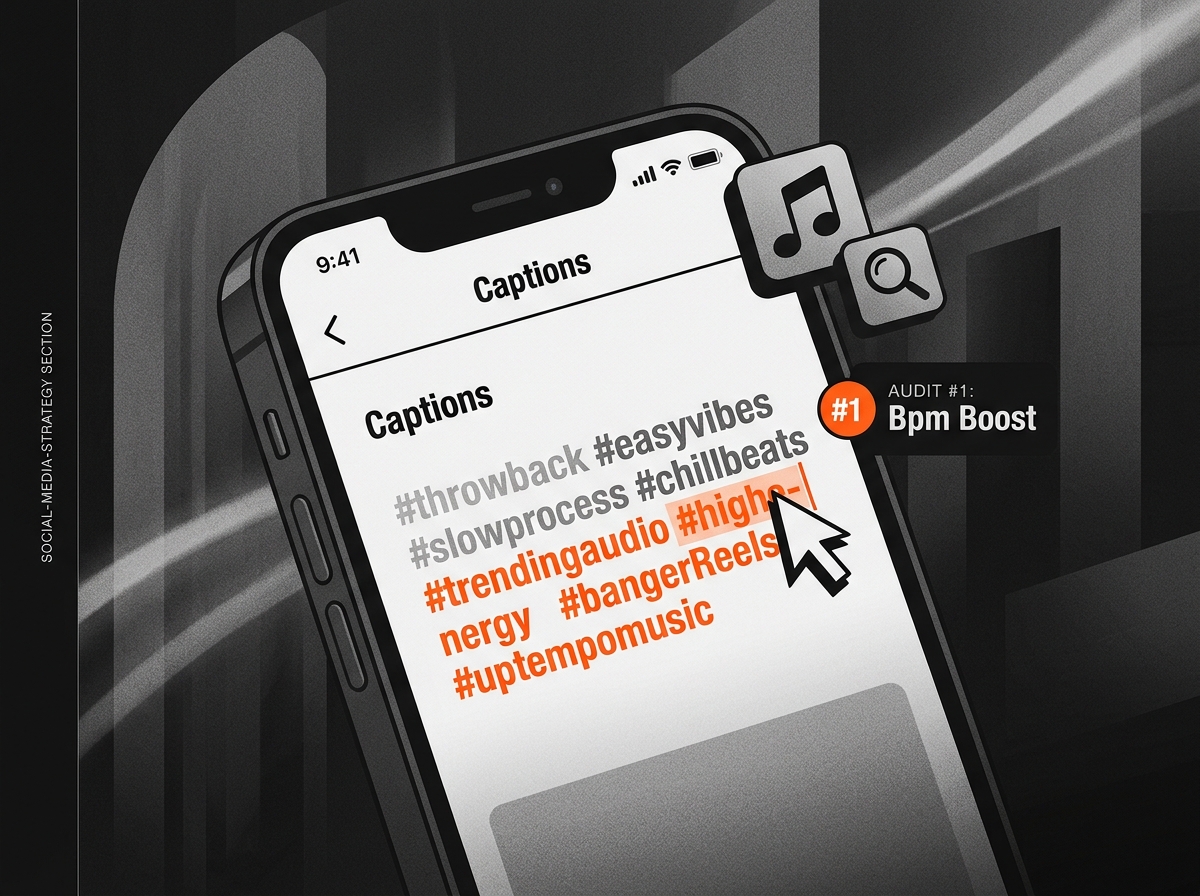
While you are in the Edit menu, refresh your hashtags. The hashtags you used six months ago may no longer be relevant or may have been shadowbanned. Use this opportunity to align the post with current search trends. If the new song is by a trending artist like Lamine Yamal's preferred tracks or a global hit, mentioning the artist or the 'vibe' in the caption can help the AI-driven discovery engine categorize your 'new' post correctly. Remember, the algorithm rewards 'highest-confidence evidence' [S3]; a cohesive package of audio, visual, and text signals that confidence.
Common Pitfall: Changing the caption so much that it no longer matches the comments. If your top comments are all about the 'old' song, consider adding a small note at the bottom of the caption: "Updated with a new beat for 2026!"
Step 5: Verification and performance monitoring
Once you hit 'Done,' the Reel will update globally. You know it worked when the audio attribution at the bottom of the Reel reflects the new track name. Now comes the monitoring phase. You should treat this like a new post for the first 48 hours.
Check your 'Insights' specifically for 'Initial Reach' in the Explore tab. Does the new audio trigger a spike in non-follower reach? Often, Instagram’s algorithm treats an audio swap as a signal to re-test the content with a small sample of users. If the 'Watch Time' remains high with the new track, the platform may push it back into the main feed. This is the ultimate 'growth hack' for evergreen content: you're essentially getting a second chance at a first impression without the cost of new production.
Related Tactics to Try Next:
- The A/B Audio Test: Take two similar evergreen Reels, swap one to a trending pop track and the other to a niche 'aesthetic' instrumental, and compare the reach after 7 days.
- The 'Mute' Rescue: Go through your 2023-2024 archives. Any Reel with the 'Audio Unavailable' tag should be your priority for a 2026 refresh.
- Cross-Platform Sync: If you find a track that works well on the Instagram swap, use WhatsApp's new sharing features [S2] to send the updated Reel directly to your brand's 'Broadcast Channel' or 'Status' to jumpstart the new engagement loop.
By systematically auditing and updating your audio, you transform your Instagram profile from a static graveyard of dead trends into a living, breathing, and optimized marketing asset. Don't let your best creative work die just because a record label and a platform couldn't agree on a contract. Take control of your audio strategy today.
FAQ