

Instagram has finally handed users the keys to the engine room. With the rollout of the 'Your Algorithm' control panel, users can now reset their feed suggestions, weight specific topics as 'Less' or 'More,' and explicitly filter out content categories that don't align with their personal preferences. For the average user, it is a long-overdue feature for digital wellbeing. For you, the brand marketer, it is a new layer of friction.
If your content is flagged—even informally—as 'low-quality' or 'not family-friendly' by a cluster of users, the algorithm doesn't just deprioritize that post; it learns to exclude your entire brand profile from those users' ecosystem. This guide will show you how to use these same transparency tools to audit your own brand sentiment and ensure your content survives the new user-led filter.
What you will achieve
By the end of this tutorial, you will have a clear 'Safety Profile' for your brand. You'll identify which of your content pillars are at risk of being filtered out and learn how to adjust your creative strategy to maintain reach in a world of user-controlled feeds.
What you need before starting
- Access to your brand's Instagram Professional Dashboard.
- A secondary 'clean' burner account (not linked to your professional profile) for unbiased testing.
- Your last 90 days of reach and engagement data (exported from Instagram Insights or a tool like Sprout Social).
TL;DR
- User Empowerment: Instagram's new controls let users explicitly down-weight topics, which can lead to 'soft-shadowbanning' for brands with inconsistent sentiment.
- The Audit: You must use the 'Reset' and 'Topic Weighting' features to see how the algorithm categorizes your brand in a vacuum.
- Safety First: Content that sits in the 'gray area' of community guidelines is the first to be pruned by these new manual controls.
Step 1: Establish your baseline with a 'Clean Slate' reset
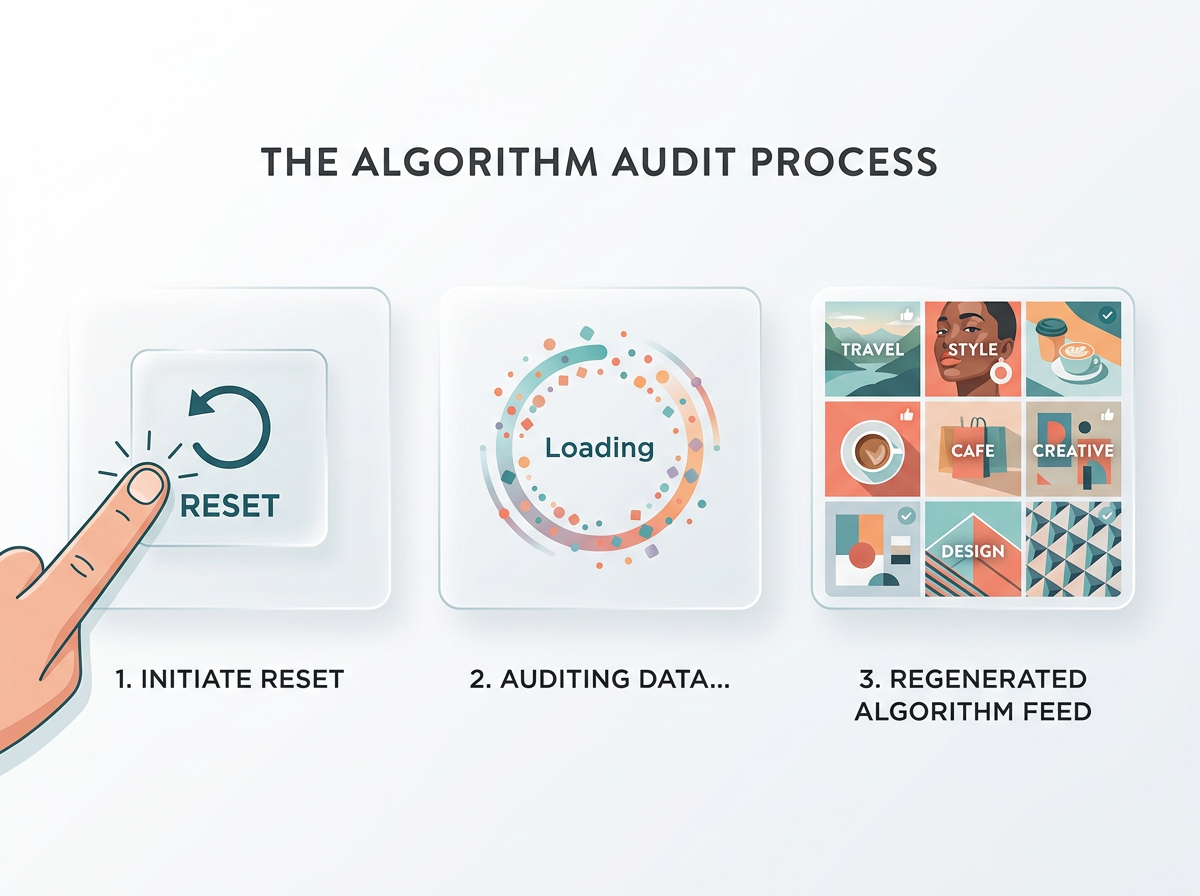
The first step in auditing your brand's standing is to remove your own personal bias. Instagram’s algorithm is a mirror; it shows you what it thinks you want to see based on your history. To see how your brand appears to a new, neutral prospect, you must use the 'Reset' function on a test device.
Go to your test account’s settings and navigate to the 'Your Algorithm' section. Select 'Reset Suggested Content.' This clears the cache of your interests, likes, and watch time.
Why it matters
Most marketers monitor their brand from accounts that are already heavily engaged with their own content. This creates a false positive. You see your posts because you are the brand. By resetting the algorithm on a clean account and then searching for your brand's primary keywords—not your handle, but your category (e.g., 'sustainable skincare' or 'fintech apps')—you can see if Instagram actually recommends your content to an untainted audience.
Common Pitfall: Don't use your main brand account for this. Resetting the algorithm on a high-engagement account can actually disrupt your own feed's performance and data collection for the Professional Dashboard. Always use a secondary, unlinked device or a separate login.
Step 2: Map your content pillars to Instagram's 'Topic Weights'
Instagram now allows users to see a list of 'Interests' the platform has assigned to them. In the new 'Your Algorithm' menu, users can toggle these interests to 'Interested' or 'Not Interested.'
Your task is to identify which of these categories your brand currently occupies. Open your brand's 'Account Status' and 'Content Recommendations' menu. Instagram now explicitly lists the categories it uses to bucket your profile. Compare this to your actual marketing strategy. If you think you're a 'Luxury Travel' brand but Instagram has you bucketed under 'Budget Hacks,' you have a sentiment misalignment that will lead to users manually filtering you out.
Why it matters
When a user hits 'Not Interested' on a topic like 'Aggressive Sales,' and Instagram has bucketed your brand there, your reach will plummet. You need to ensure your content signals (captions, hashtags, and visual AI tags) align with the high-value, 'safe' categories users are likely to keep active, such as 'Education,' 'Inspiration,' or 'Entertainment.'
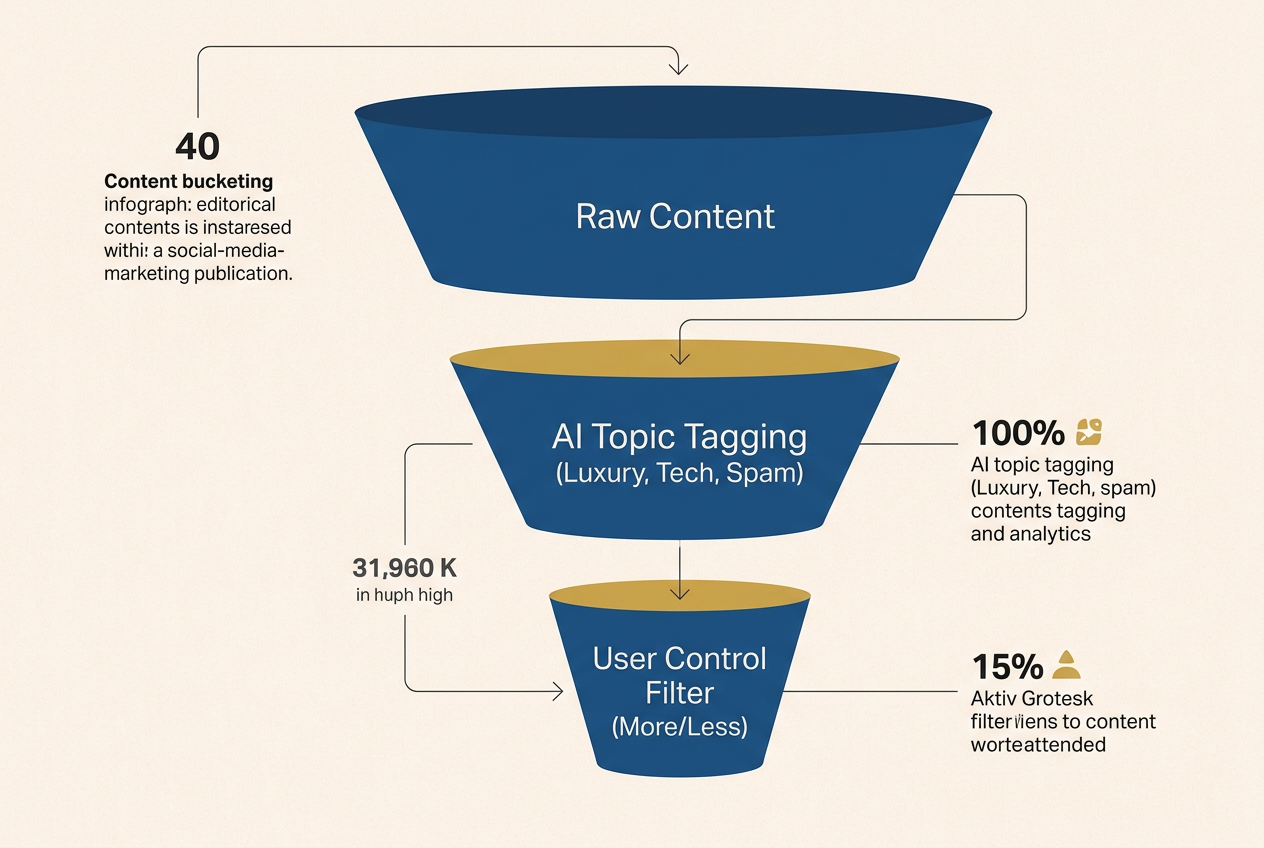
Common Pitfall: Over-tagging. If you use 30 hashtags across five different niches, you confuse the bucketing system. This makes you a prime candidate for the 'Not Interested' filter because your content will inevitably appear in the wrong feeds.
Step 3: Conduct a 'Sensitivity Profile' audit
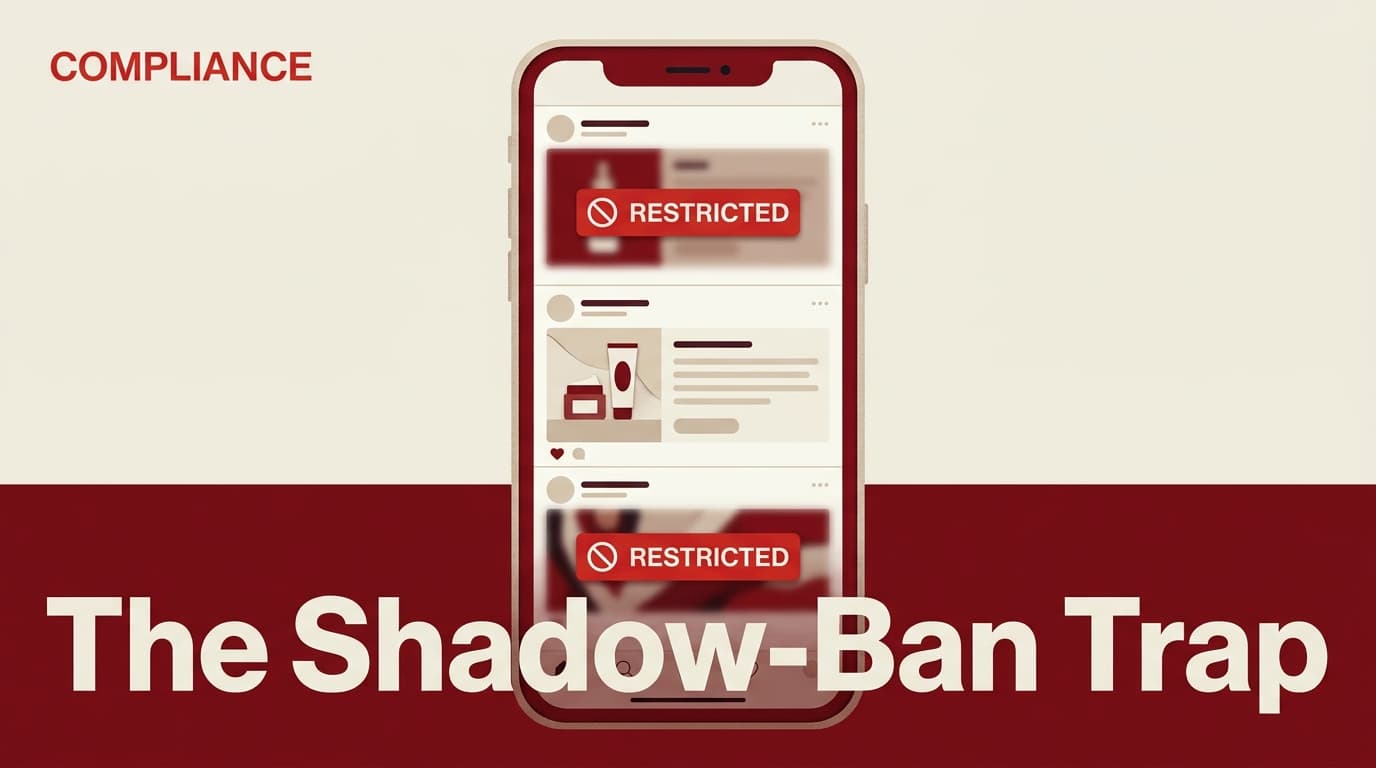
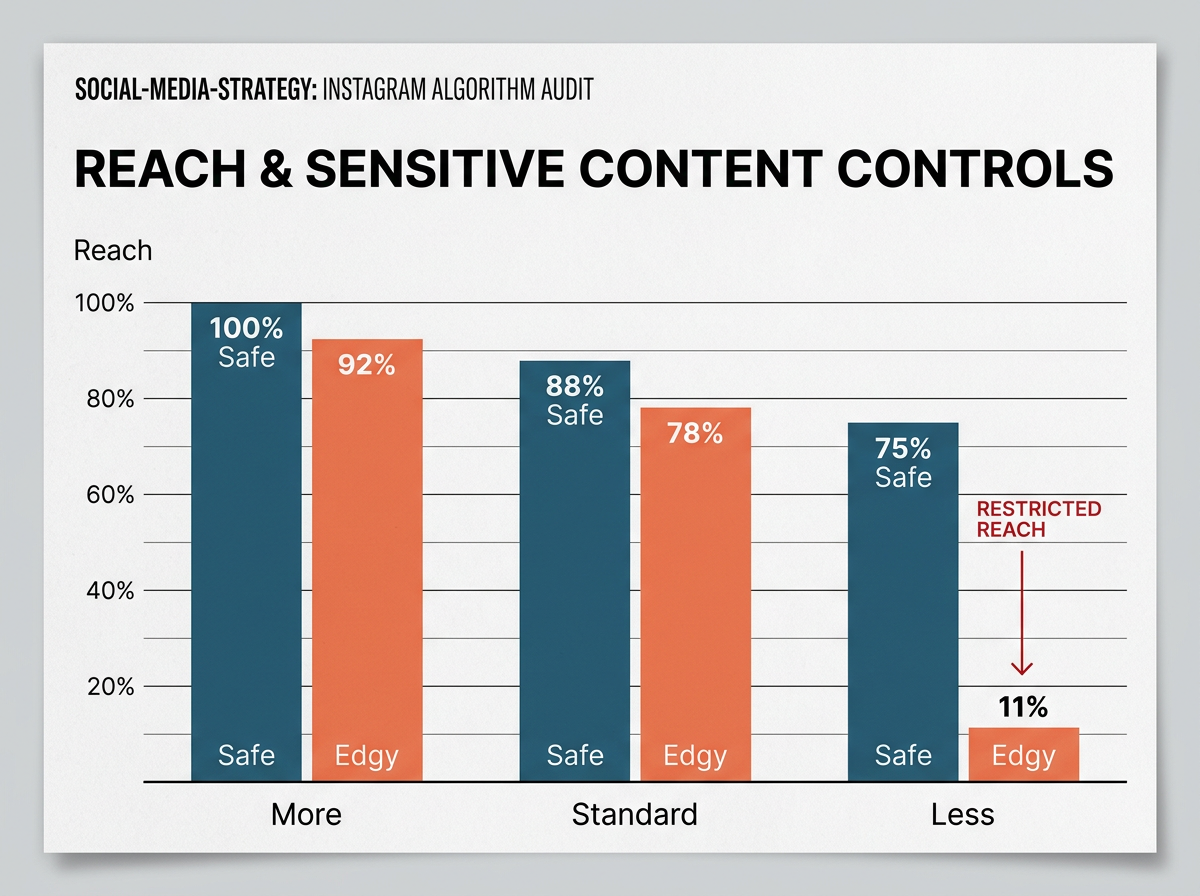
One of the most significant changes in the update is the 'Sensitive Content Control' being moved front-and-center. Users can now choose 'More,' 'Standard,' or 'Less.' While 'Standard' is the default, a growing segment of users—particularly parents and younger Gen Z users—are moving to 'Less.'
We have seen instances where even innocuous content is flagged incorrectly. For example, a recent report [S3] highlighted an instance where a video of a woman singing was removed for 'nudity or sexual activity' despite being fully clothed. This kind of AI-driven miscategorization is the silent killer of brand reach.
Review your last 30 Reels. Check the 'Recommended' status for each. If any are marked as 'Non-Recommendable,' you aren't just losing reach on that post; you are signaling to the algorithm that your brand belongs in the 'Sensitive' bucket.
Why it matters
Brands that trigger the 'Sensitive' filter are the first to be hidden when users toggle their new controls. Even if you aren't violating rules, being 'edgy' is now a quantifiable risk to your distribution. You need to decide if the engagement from 'edgy' content outweighs the loss of being filtered out by the 20-30% of users who will likely tighten their sensitivity settings.
Common Pitfall: Ignoring the 'Account Status' tab. This is the only place Instagram tells you if your 'Safety Profile' is compromised. Check it weekly, not monthly.
Step 4: Test 'Negative Signal' resilience
The new controls include a 'Don't suggest posts with certain words' feature. This is essentially a manual shadowban tool for users. To audit this, look at your comment sections and the keywords used in your most successful posts.
Are you using 'hacks,' 'secret,' 'giveaway,' or other 'spam-adjacent' language? Users are increasingly adding these to their banned word lists to clean up their feeds. Use a tool like Brandwatch to see which keywords are most associated with your brand in a negative context. If those words appear in your own captions, you are handing users the scissors to cut you out of their feed.
Why it matters
Direct control means users are acting as their own moderators. If your brand's 'voice' relies on tropes that users find annoying, they won't just scroll past—they will mute the keyword. This is a permanent loss of a potential customer.

Common Pitfall: Using 'engagement bait' keywords. While 'Comment YES below' used to work, it is now a massive red flag for users looking to filter out 'low-value' content using the new manual tools.
Step 5: Verification — The 'Shadow Audit' check
How do you know if your audit and subsequent changes worked? You perform a 'Shadow Audit.'
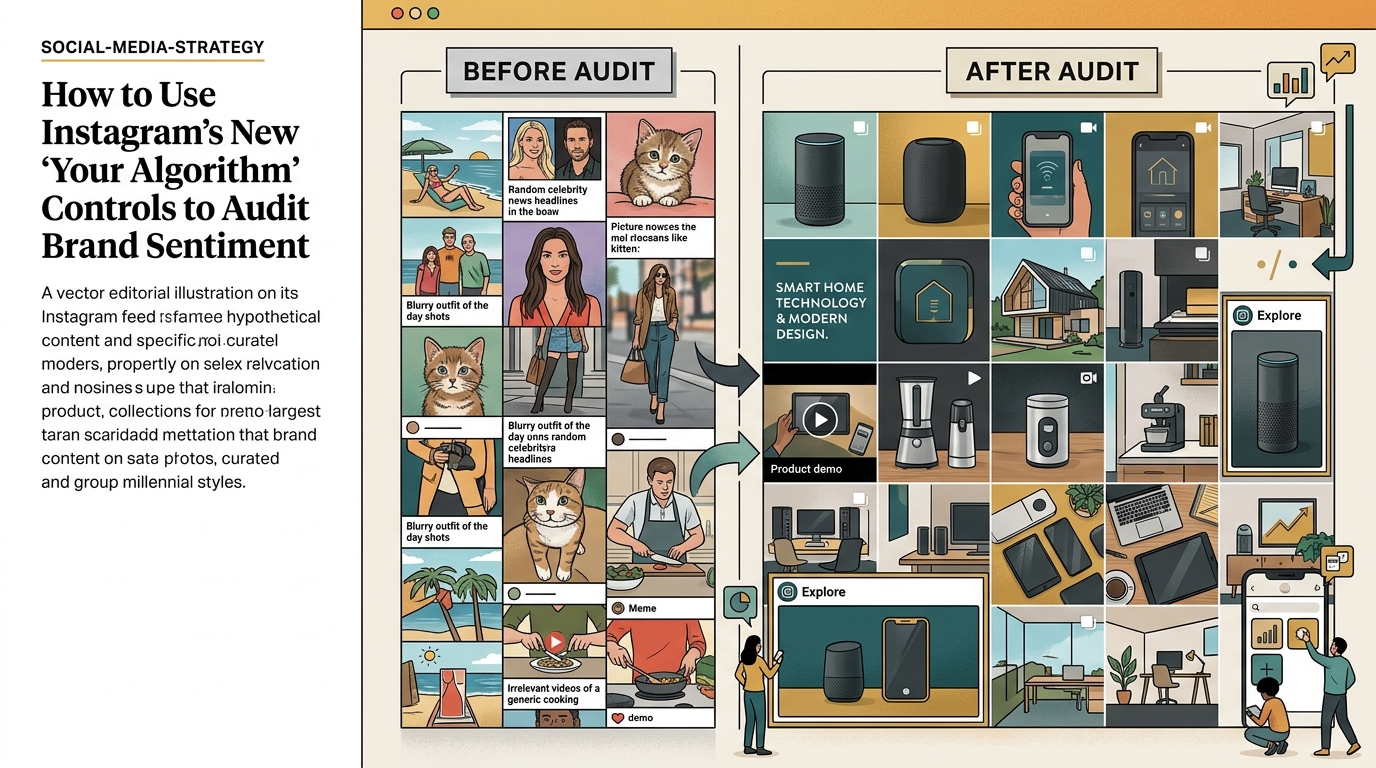
Two weeks after adjusting your content pillars and cleaning up your sensitivity triggers, use your 'Clean Slate' test account again. Search for your niche's top-performing keywords. If your brand appears in the 'Top' or 'Reels' tab within the first ten results, your safety profile is healthy. If you are buried under smaller accounts with less engagement, you are still being penalized by the algorithm's safety filters.
Why it matters
Reach is a vanity metric; 'Recommendability' is the new gold standard. If the algorithm is willing to put you in front of a stranger who has just reset their preferences, you have successfully navigated the new controls. This ensures that your paid spend isn't being wasted on 'ghost' audiences who have technically filtered your category out.
Three related tactics to try next
- The 'Value-First' Pivot: Shift 70% of your content to 'Educational' or 'How-to' styles. These categories are rarely filtered out by users in the 'Your Algorithm' settings, as they provide tangible utility.
- Collaborator Safety Checks: Before partnering with a creator, check their 'Account Status' (if they'll share it) or use a third-party tool to check their 'Brand Safety Score.' If they are flagged, their 'Sensitive' status will bleed onto your brand during a Collab post.
- Keyword Diversification: Stop using the same five industry hashtags. Use the 'Your Algorithm' interest list to find adjacent topics (e.g., if you sell coffee, look at 'Interior Design' or 'Morning Routine') and seed your content there to avoid being pigeonholed into a single, high-competition filter.
Instagram's shift toward user-led moderation is part of a broader trend we're seeing across the industry. As marketers brace for potential whiplash on other platforms like TikTok [S4], maintaining a clean, recommendable profile on Instagram is your best insurance policy against the next major algorithm shift.
FAQ