
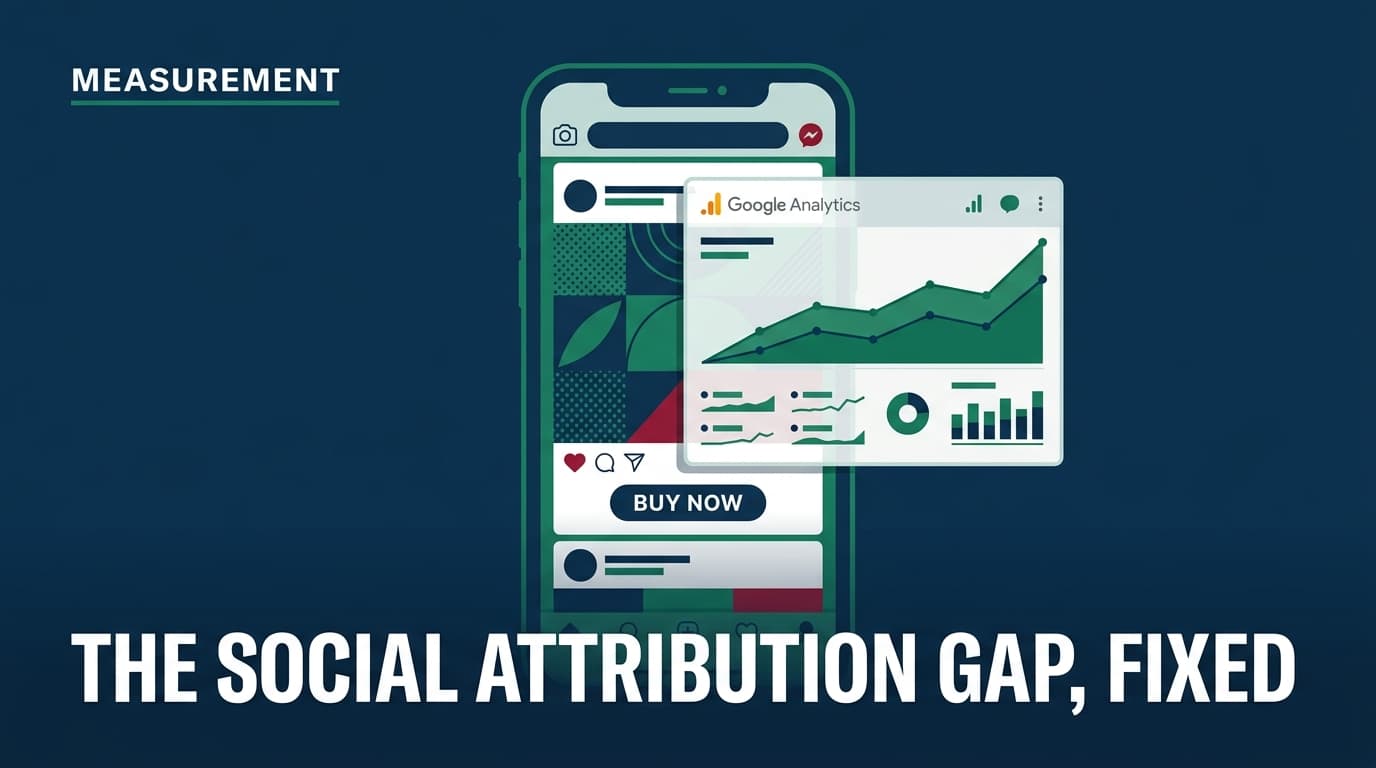
For years, the 'attribution gap' has been the primary source of friction between social media managers and the C-suite. You see a 4.0x ROAS in Meta Ads Manager, but Google Analytics 4 (GA4) credits that same campaign with a dismal 0.5x. This discrepancy isn't just a reporting annoyance; it leads to underfunded social budgets and a fundamental misunderstanding of how platforms like TikTok and Instagram actually drive revenue.
Google has finally addressed a major piece of this puzzle. With the rollout of custom conversion windows and expanded engaged-view attribution settings, GA4 now allows you to move away from rigid defaults and align your site-side tracking with the logic used by social platforms. By the end of this guide, you will be able to synchronize your GA4 reporting windows with your paid social settings, providing a more cohesive—and honest—view of your multi-channel performance.
TL;DR
- Align Windows: Match GA4’s conversion windows to your specific social platform settings (e.g., 7-day click for Meta) to reduce data discrepancies.
- Engaged-View Utility: Enable and customize engaged-view windows to capture value from users who watch a video but don't click immediately.
- Granular Control: You can now set different windows for different conversion events, allowing for longer lead cycles in B2B versus quick impulse buys in D2C.
Step 1: Audit your platform-side attribution settings
Before you touch a single setting in Google Analytics, you must know what you are trying to match. Every social platform has a default 'attribution window'—the period of time after a user interacts with an ad during which a subsequent conversion is credited to that ad.
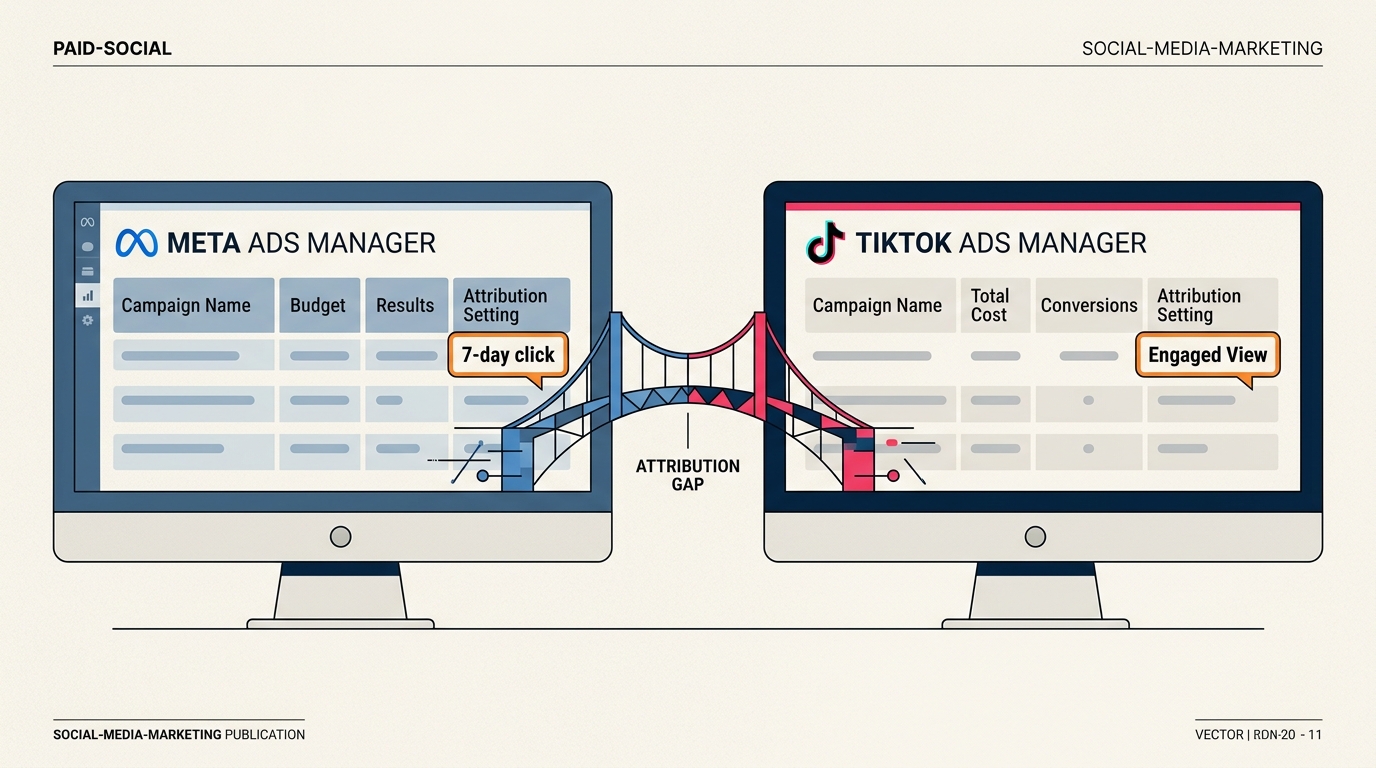
If you are running Meta Ads, your default is likely a 7-day click and 1-day view window. TikTok often defaults to a 7-day click and 1-day view as well, but their 'Engaged View' (watching 6 seconds or more) is a distinct metric that GA4 now specifically supports.
Why it matters: You cannot fix the attribution gap if you don't know the baseline. If Meta is claiming credit for a sale that happened 6 days after a click, but GA4 is set to a 30-day default (or previously lacked the flexibility to match specific engaged-view windows), the numbers will never align.
Common Pitfall: Many marketers assume all campaigns in an account use the same window. Check your individual campaign settings; sometimes 'Value Optimization' or specific 'Outcome' biddings force different attribution windows that deviate from your account-level defaults.
Step 2: Configure Engaged-View Attribution (EVA) in GA4
Engaged-view attribution is the bridge between 'passive viewing' and 'active clicking.' It measures conversions that occur after a user watches at least 10 seconds of a video ad (or the whole video if it's shorter) but doesn't click.
To set this up, navigate to the Admin section of GA4, then under Data Collection and Modification, select Data Streams. Choose your primary web stream and click on Configure Tag Settings. From there, you will find the option to adjust your attribution settings.
Why it matters: Social media is increasingly video-first. According to recent industry benchmarks, including a Search Engine Journal report on GA4 updates in August 2026, the inclusion of EVA helps capture the 'halo effect' of top-of-funnel video content that traditional last-click models ignore.
Common Pitfall: Don't set your EVA window to the maximum 30 days unless you have a very long sales cycle. For most D2C brands, a 3-day or 7-day engaged-view window is the sweet spot for realism. Setting it too long will artificially inflate the 'influence' of social, leading to the same problem you had before—just in reverse.
Step 3: Define Custom Click-Through Windows for Specific Events
One of the most significant changes in the recent GA4 update is the ability to set conversion windows at the event level, rather than just the property level.
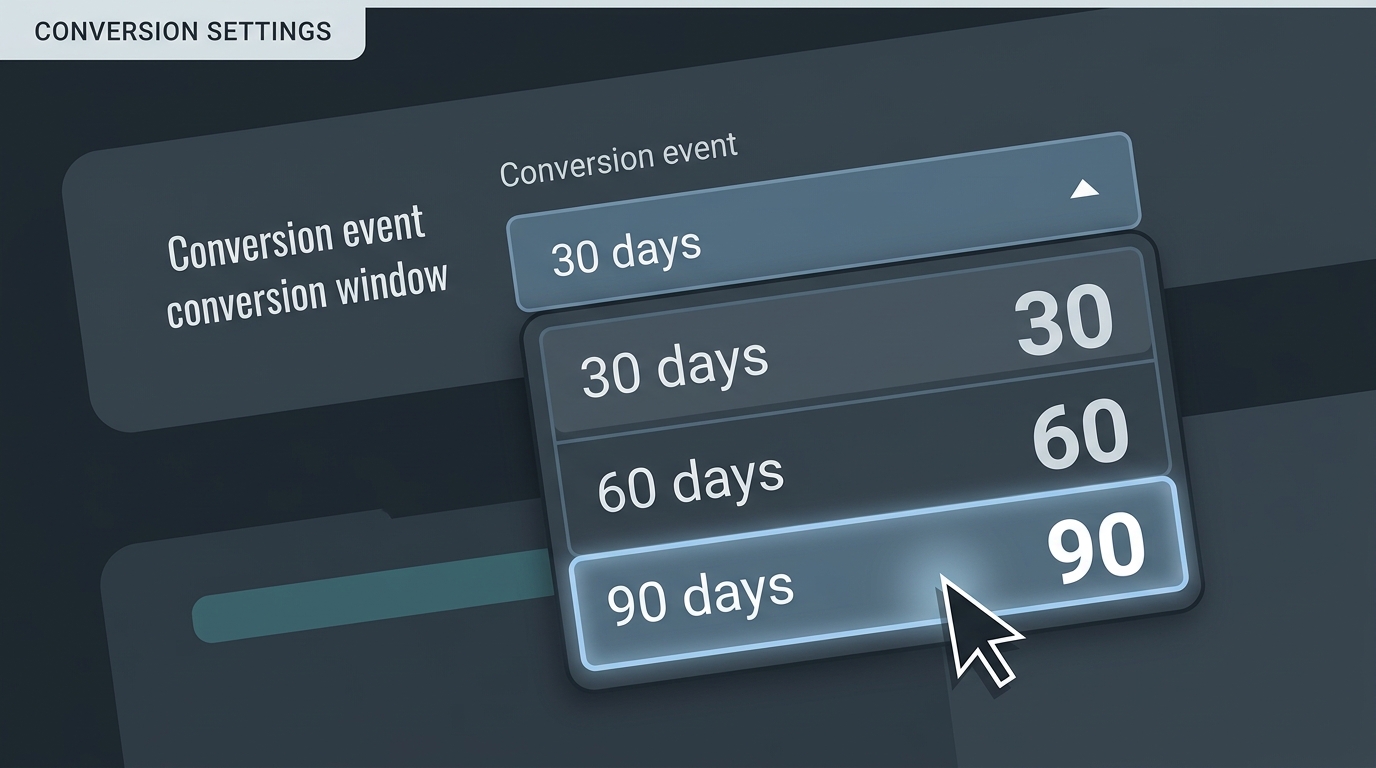
Go to Admin > Library > Conversions. Here, you will see a list of your marked conversion events (e.g., purchase, generate_lead, add_to_cart). Click the three dots next to an event and select 'Change attribution settings.' You can now toggle the click-through window between 30, 60, or 90 days.
Why it matters: Not all conversions are created equal. A newsletter_signup might only deserve a 30-day window, whereas a high_value_purchase for a B2B SaaS product might require a 90-day window to account for the long research phase common in professional services. This level of granularity was previously a major advantage for tools like Adobe Analytics, but GA4 has finally closed the gap.
Step 4: Map Your Custom Windows to the Customer Journey
Now that you have the technical ability to change these windows, you need a strategy. You should align your GA4 windows with the typical time-to-convert for your specific industry.
For example, if you are a fashion retailer, your data probably shows that 80% of conversions happen within 48 hours of a social click. In this case, a 90-day window in GA4 will only clutter your data with 'zombie' attributions. Conversely, if you sell high-end furniture, a 30-day window will likely miss the final purchase that happens after the customer measures their living room three times.
Why it matters: Attribution is about decision-making. If your windows are too short, you’ll kill profitable top-of-funnel ads. If they are too long, you’ll over-allocate to retargeting ads that weren't actually the catalyst for the sale.
Common Pitfall: Ignoring the 'Post-Purchase Survey' data. Use a tool like Fairing or EnquireLabs to ask customers "How did you first hear about us?" If 40% say TikTok but GA4 (even with custom windows) says 5%, you still have a tracking issue—likely related to cross-device behavior that no window adjustment can fix.
Step 5: Implement UTM Consistency for Multi-Platform Tracking
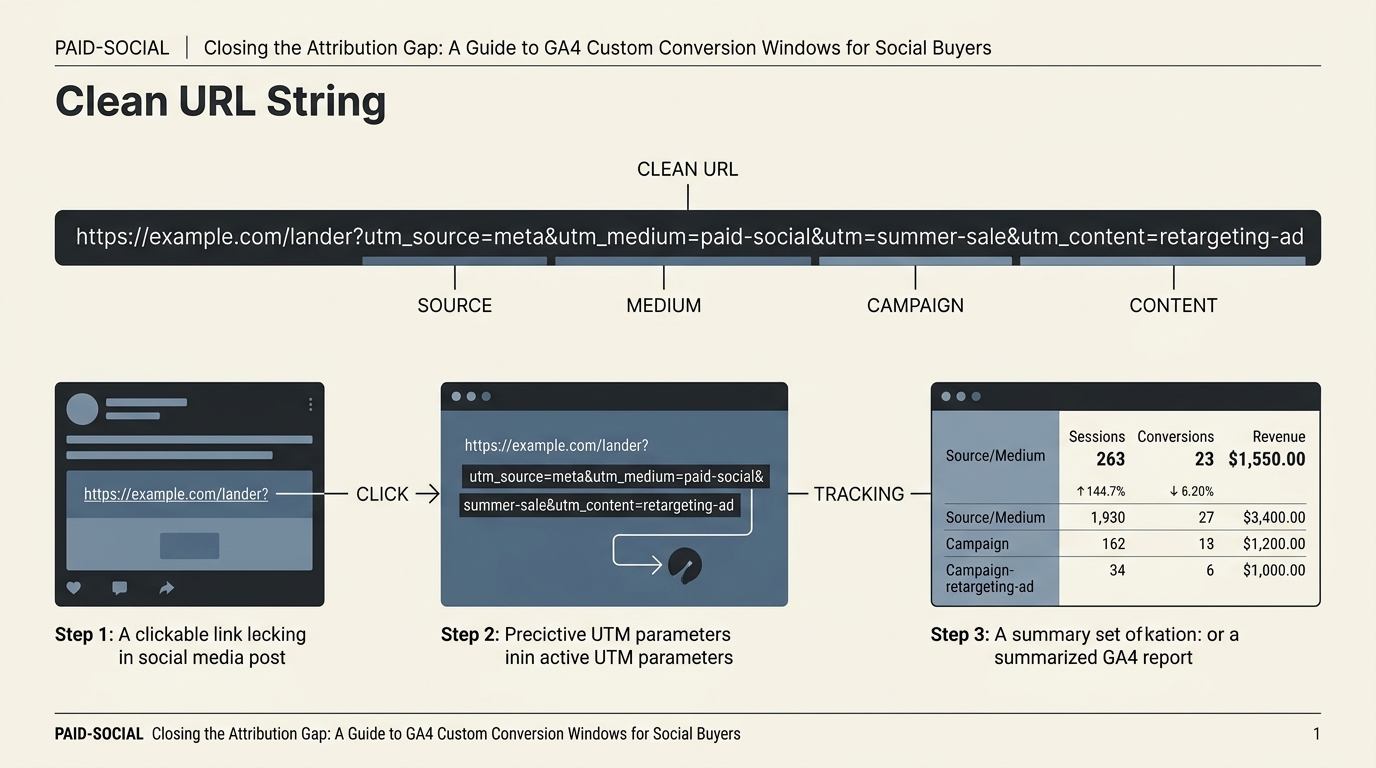
Custom windows are useless if the data coming into GA4 is messy. You must ensure your UTM parameters are standardized across Meta, TikTok, LinkedIn, and Pinterest.
Use a consistent naming convention:
utm_source: The platform (e.g.,tiktok)utm_medium: The ad type (e.g.,paid_social_video)utm_campaign: The specific initiativeutm_content: The creative ID or name
Why it matters: GA4 uses these parameters to bucket traffic into 'Session Source/Medium.' When you look at your new custom conversion windows, you'll be filtering by these dimensions. If one team uses utm_source=ig and another uses utm_source=instagram, your attribution reports will be fragmented.
Common Pitfall: Using 'Auto-tagging' in Google Ads but forgetting to manually tag social ads. Google Ads and GA4 talk to each other perfectly via GCLID, but for social, you are the bridge. Without precise UTMs, GA4 will bucket your paid social traffic into 'Organic Social' or 'Unassigned,' rendering your custom windows irrelevant.
Step 6: Verify the Setup with the Model Comparison Tool
Once you have adjusted your windows, you need to see how the data has shifted. You won't see these changes reflected in your historical data; GA4 attribution changes are generally forward-looking.
Wait at least 14 days, then go to Advertising > Attribution > Model Comparison. Compare the 'Data-driven' model with your new custom window settings against the 'Last Click' model.
How to verify it worked:
- Look for the 'Conversions' column.
- Filter by 'Session Source/Medium' to isolate your social channels.
- You should see a 'Percentage Change' in conversions credited to social. If you’ve lengthened your windows or enabled Engaged-View, this number should typically increase.
Why it matters: This is your proof of concept. When you show your boss that social is actually driving 20% more value than previously thought, you use this report to justify the shift.
Three Related Tactics to Try Next
1. Build a 'Social-First' Exploration Report
Now that your windows are aligned, create a custom Exploration in GA4 that specifically looks at 'User Conversion Paths.' Filter for paths that start with a social source. This will show you how many people discover you on social but eventually convert via Direct or Organic Search—a classic behavior that custom windows help highlight.
2. Test 'Incrementality' with Geo-Lift
Attribution windows are still just models. To find the true value, run a geo-lift test. Turn off social ads in specific geographic regions while keeping them on in others. Compare the total site revenue between the two. If the revenue drop in the 'off' regions matches what GA4’s new custom windows predicted, you know your attribution is finally accurate.
3. Integrate First-Party Data via Measurement Protocol
Since iOS 14.5, browser-based tracking has been shaky. Use the GA4 Measurement Protocol to send server-side conversion data back to Google. When combined with your new custom windows, this ensures that even if a user clears their cookies or uses a private browser, the 'lead' or 'purchase' event is still tied back to the original social touchpoint.
Attribution will never be 100% perfect. The goal isn't total certainty—it's to reduce the margin of error enough to make confident budget decisions. By taking these six steps, you move from guessing to measuring, finally giving your social campaigns the credit they’ve earned.
FAQ