

Luxury marketing has always been a game of exclusion. While mass-market brands chase reach, luxury brands thrive on scarcity, exclusivity, and the surgical precision of their audience. For years, Google’s Performance Max (PMax) was the enemy of this philosophy. Its 'black box' nature favored volume over brand safety, often serving ads for $5,000 handbags to users who, while interested in the aesthetic, lacked the disposable income to convert.
But the tide has turned. Google’s recent updates to campaign-level and account-level demographic controls finally allow luxury marketers to apply household income (HHI) exclusions. By the end of this guide, you will know how to layer these exclusions to stop wasting spend on the bottom 50% of earners while maintaining the feed-based signals necessary for the algorithm to function. You will need a verified Google Ads account with an active PMax campaign and at least 30 days of historical conversion data to benchmark your results.
TL;DR
- Protect Equity: Use HHI exclusions to prevent high-ticket items from appearing in low-intent environments.
- Layered Approach: Combine income filters with negative keyword lists and brand exclusions for maximum control.
- Avoid Data Voids: Don't exclude 'Unknown' segments immediately; they often contain high-value users with blocked tracking.
- Monitor ROAS: Expect a temporary dip in volume but a significant increase in average order value (AOV).
Step 1: Audit Your Current Demographic Distribution
Before you start cutting segments, you must understand where your money is currently going. PMax often hides demographic performance deep within the 'Reports' editor rather than the main campaign dashboard. You aren't just looking for where you aren't selling; you're looking for where you are spending without any hope of a return.
Navigate to the 'Reports' icon in the top right of your Google Ads dashboard. Create a custom table with 'Campaign' as the row and 'Household Income' as the column. Add metrics for 'Cost', 'Conversions', and 'Conv. Value'. If you see that 30% of your spend is going to the 'Lower 50%' bracket with a 0.1x ROAS, you have your smoking gun. Luxury brands typically find that their sweet spot lies in the 'Top 10%' and '11-20%' brackets. However, Alphabet's Q2 earnings report (as noted by SEJ) highlighted that while search revenue is precise, click claims are often unverifiable analyzing google q2 revenue trends. This makes your internal first-party data the only true source of truth.
Common Pitfall: Many marketers see a high click-through rate (CTR) from lower-income brackets and assume it's 'brand building.' In luxury, a high CTR from a non-buying segment is just an expensive way to train the algorithm to find more non-buyers.
Step 2: Access the Campaign-Level Exclusion Settings
Historically, PMax didn't allow for granular demographic exclusions at the campaign level. You had to rely on account-level settings which affected everything. Now, you can find these settings under the 'Audiences' tab within a specific PMax campaign.
Scroll down to the 'Demographics' card. Here, you will see the breakdown of Age, Gender, and Household Income. Click on 'Edit Demographics'. You will be presented with a list of checkboxes. For a luxury brand—think high-end watches, bespoke furniture, or private aviation—you should immediately uncheck 'Lower 50%', '41-50%', and '31-40%'.
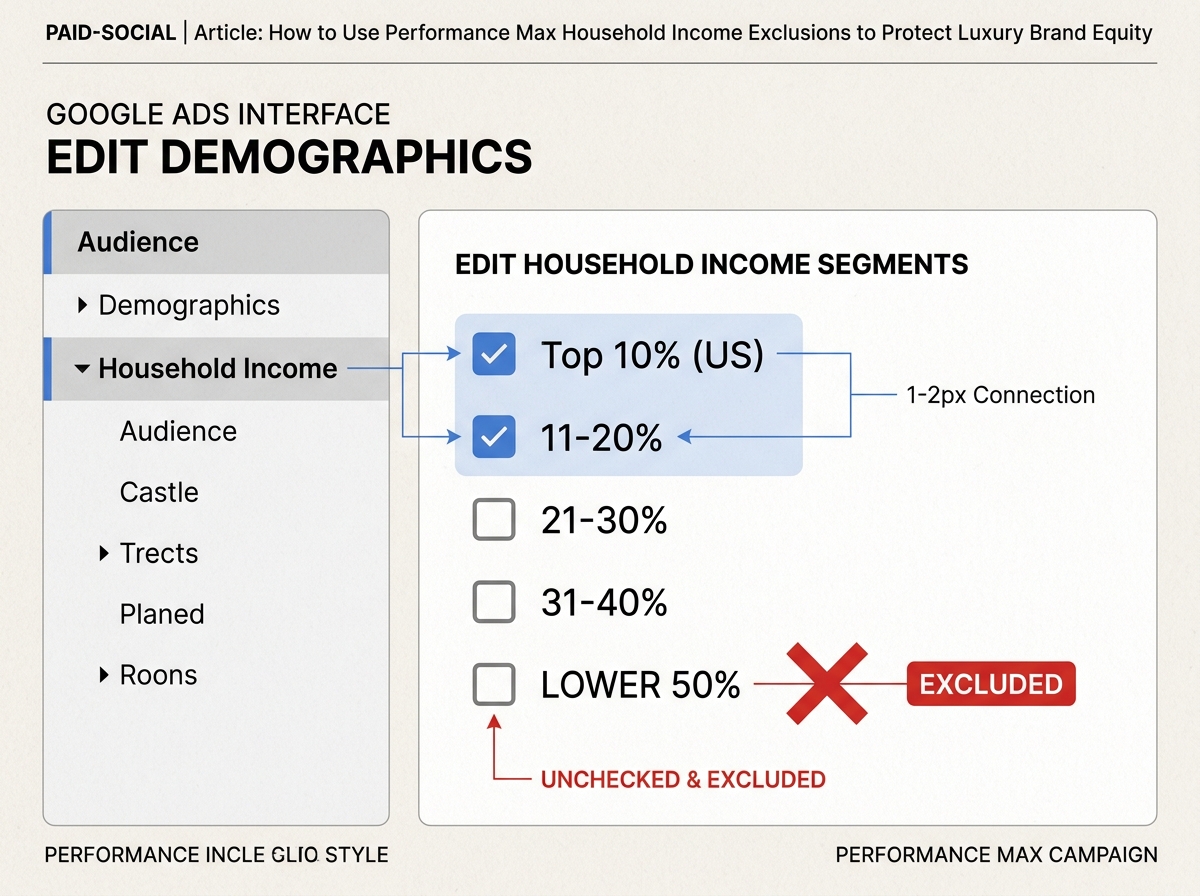
Why this matters? PMax uses a combination of Search, Display, YouTube, and Gmail. Without these exclusions, your luxury creative might appear on a mobile gaming app or a budget-focused YouTube channel. While Google's AI & Economy report suggests AI-mode conversations are becoming part of daily life [S3], the algorithm still prioritizes clicks unless you provide strict guardrails. By unchecking these boxes, you are telling the 'black box' that these segments are non-negotiable 'no-go' zones.
Common Pitfall: Do not uncheck 'Unknown' in the first 14 days. In an era of increasing privacy (post-iOS 14.5), a large portion of high-net-worth individuals use ad-blockers or privacy settings that mask their income. If you exclude 'Unknown', you might be excluding your wealthiest customers.
Step 3: Layer Negative Keyword Lists to Support Income Filters
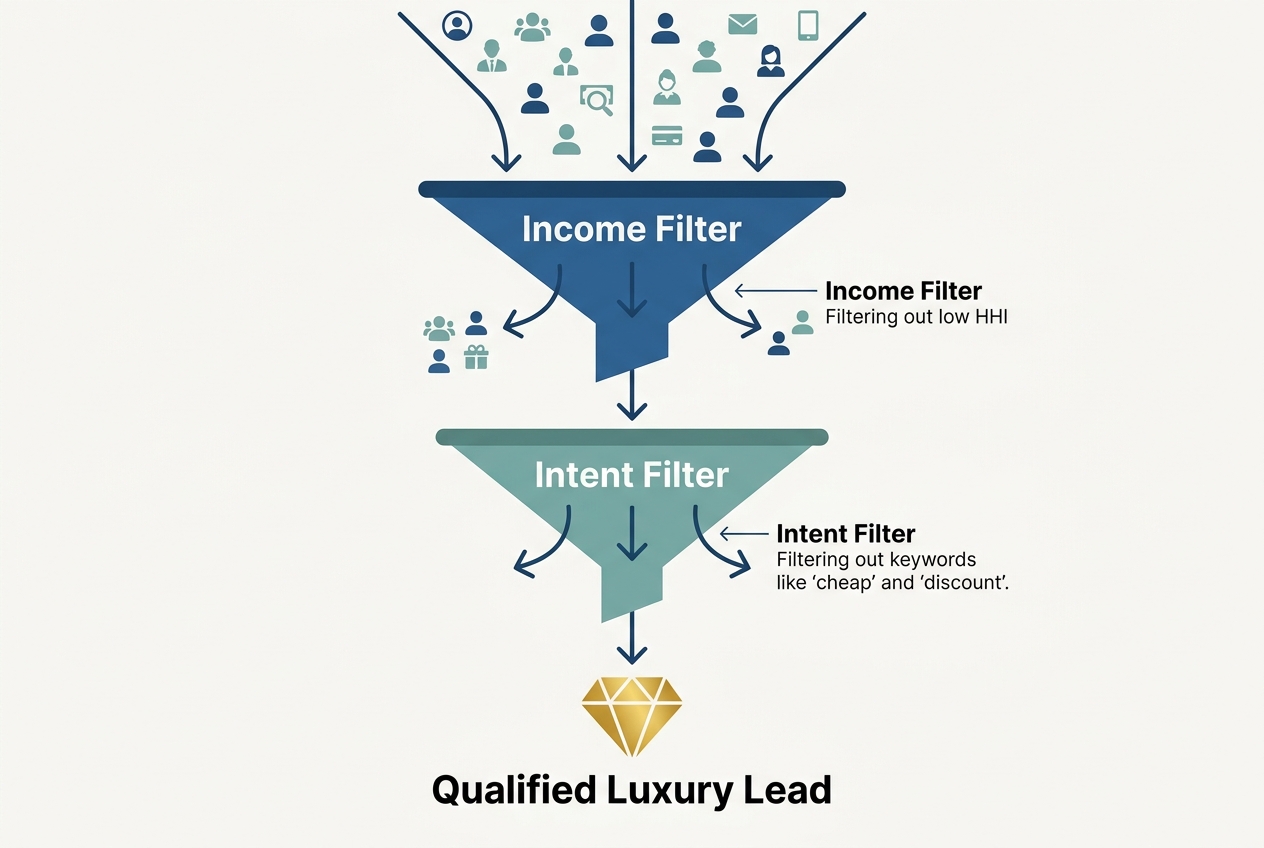
Income exclusions alone aren't enough. A user in the 'Top 10%' might still search for 'discounted Rolex' or 'cheap luxury villas.' To protect your brand equity, you must layer a negative keyword list that mirrors the intent of the income brackets you just excluded.
Create a list titled 'Luxury Brand Safety' and include terms like 'cheap', 'free', 'discount', 'clearance', 'wholesale', and 'used'. Apply this list at the account level. This creates a two-factor authentication for your ads: the user must be in a high-income bracket and they must not be using 'bargain-basement' language. This is particularly important since Google sometimes ignores robots.txt rules for indexing [S1], meaning your internal 'sale' pages might be crawled and served as sitelinks unless you are proactive with exclusions.
Common Pitfall: Being too aggressive with 'sale' keywords if you actually run seasonal promotions. If you have a legitimate 'End of Season' sale, use a separate 'Promotion' asset group in PMax rather than removing the negative keywords, which can confuse the learning phase.
Step 4: Refine Asset Groups for High-Net-Worth Visuals
Once the exclusions are in place, your creative must work harder to justify the premium positioning. PMax relies heavily on the 'strength' of your assets. If you are excluding the bottom 50% of earners, your visuals should reflect the lifestyle of the top 10%. Avoid stock photography that looks like a generic office. Use 'aspirational' imagery—minimalist layouts, high-contrast lighting, and authentic environments.
This aligns with TikTok’s 2026 trend forecast [S5], which emphasizes 'Subtle Luxury' and 'Quiet Aesthetics' over loud, flashy branding. If your PMax campaign serves on YouTube or the Google Display Network, ensure your video assets are high-production. Even though you can buy engagement on other platforms [S4], Google's algorithm for PMax is sensitive to 'Time on Site' and 'Conversion Value'. If a high-income user clicks your ad but finds the creative 'cheap,' they will bounce, and your CPC will skyrocket.

Common Pitfall: Using the same creative for PMax that you use for Facebook or TikTok. PMax needs more 'breathing room' in the frame because Google will crop your images into various aspect ratios. Keep the subject centered and the 'luxury' cues obvious.
Step 5: Monitor the 'Learning Phase' and Adjust ROAS Targets
Whenever you change demographic settings, PMax enters a mini-learning phase. Expect a 7- to 10-day period of volatility. During this time, your spend might drop significantly. This is normal. The algorithm is recalibrating to find users within your new, narrower parameters.
Because you are now targeting a more competitive (and expensive) audience, your Cost Per Click (CPC) will likely increase. However, your Conversion Rate and Average Order Value (AOV) should also rise. To manage this, adjust your Target ROAS (tROAS) slightly downward during the first week to give the algorithm 'permission' to bid higher for those Top 10% users. Once the campaign stabilizes, you can incrementally raise the tROAS to optimize for profit.
Step 6: Verification — How to Know It Worked
To verify that your HHI exclusions are effective, wait 21 days after the implementation. Go back to the 'Reports' editor and pull the same 'Household Income' table you created in Step 1.
- Check Spend Distribution: The 'Lower 50%' and '41-50%' rows should show zero or near-zero spend.
- Analyze AOV: Compare the AOV from the 21 days prior to the change with the 21 days after. A successful luxury exclusion strategy should see an AOV increase of at least 15%.
- Review Search Terms: Check the 'Search Terms' insight tab. You should see a decrease in 'low-intent' queries containing the negative keywords you implemented in Step 3.
3 Related Tactics to Try Next
Once you have mastered HHI exclusions, consider these advanced moves to further refine your luxury PMax performance:
- Geographic 'Wealth' Layering: Instead of just excluding by income, exclude specific zip codes or regions known for lower property values. This adds a physical layer of exclusion to the digital one.
- First-Party Data Uploads: Use 'Customer Match' to upload a list of your highest-spending customers. Use this as a 'Signal' in your Asset Group to tell Google: 'Find me more people exactly like these.'
- Brand Exclusions for Competitors: In the 'Campaign Settings,' use the 'Brand Exclusions' feature to prevent your ads from showing up on searches for budget competitors. This ensures your luxury watch ad doesn't appear when someone is looking for a $20 plastic digital watch.
By following this structured approach, you move PMax from a 'spray and pray' tool to a precision instrument for luxury growth. You aren't just buying clicks; you're curated an audience that matches the prestige of your brand.
FAQ