
The clock is ticking on the way you feed your CRM data back into Google Ads. If you’ve spent the last few years relying on a custom script or a middleware tool that hits the UploadClickConversions or UploadCallConversions services in the standard Google Ads API, you have a hard deadline approaching this June. Google is effectively sunsetting these legacy endpoints in favor of the Google Data Manager API.
This isn't just a cosmetic rebrand. It’s a fundamental shift in how Google handles first-party data. By the end of this guide, you will have a clear technical path to migrate your offline conversion tracking (OCT) to the Data Manager framework, ensuring your YouTube, Performance Max (PMax), and Search campaigns don't lose the high-intent signals they need to optimize for actual revenue rather than just lead-form fills.
Why it matters: Without this migration, your automated bidding strategies will go blind. If you stop uploading offline signals, Google’s Smart Bidding will revert to optimizing for shallow top-of-funnel actions, likely driving up your CPL while your actual ROAS craters.
Key takeaways
- The Deadline: Legacy Google Ads API offline upload services are being deprecated in June; the Data Manager API is the mandatory replacement.
- The Shift: Data Manager moves from a "push" model of raw clicks to a "connection" model that centralizes data governance and privacy-safe matching.
- The Goal: Maintaining signal density for PMax and YouTube campaigns that rely on CRM backfills to distinguish between junk leads and closed-won deals.
- The Requirement: You need Google Cloud project access, a Google Ads developer token, and an updated schema for your hashing protocols.
Step 1: Audit your existing Google Ads API credentials and scopes
Before you write a single line of code for the new API, you have to verify your current infrastructure. Most social buyers and agency strategists inherited a legacy setup that uses a Service Account or an OAuth 2.0 flow specifically scoped for the google-ads API.
The Data Manager API requires a more modern handshake. You aren't just sending a list of GCLIDs (Google Click IDs) anymore; you are establishing a "Data Source" within the Google Ads UI that the API then populates.
What to do: Log into your Google Cloud Console and ensure your project has the Google Ads API enabled, but also check for the new Data Manager permissions. You’ll need to ensure your developer token has at least 'Basic' access levels. If you've been using a third-party connector like Zapier or a legacy version of [INTERNAL: Salesforce-to-Google-Ads integration -> crm-integration-trends], you need to check if they have updated their backend to the Data Manager schema. If they haven't, you're looking at a manual migration.
Why it matters: The Data Manager API uses a different resource name format. In the old world, you uploaded to a conversion_action. In the new world, you are interacting with a data_source that maps to multiple conversion actions. If your credentials aren't aligned with this hierarchical shift, your first API call will return a 403 Forbidden error.
Common pitfall: Many teams forget that Data Manager requires specific permissions at the MCC (Manager Account) level. If your API user only has access to a single sub-account but the Data Manager connection was created at the MCC level, the sync will fail. Always verify that your OAuth scope includes https://www.googleapis.com/auth/adwords and that the user has 'Admin' or 'Standard' access to the relevant accounts.
Step 2: Configure the Data Manager Source in the Google Ads UI
Unlike the legacy API where you could simply start pushing data to a conversion ID, the Data Manager API requires a "landing spot" to be pre-configured in the UI. This is where Google is moving toward a more "headless" approach, similar to how [S1] describes Hootsuite’s shift toward API-first workflows.
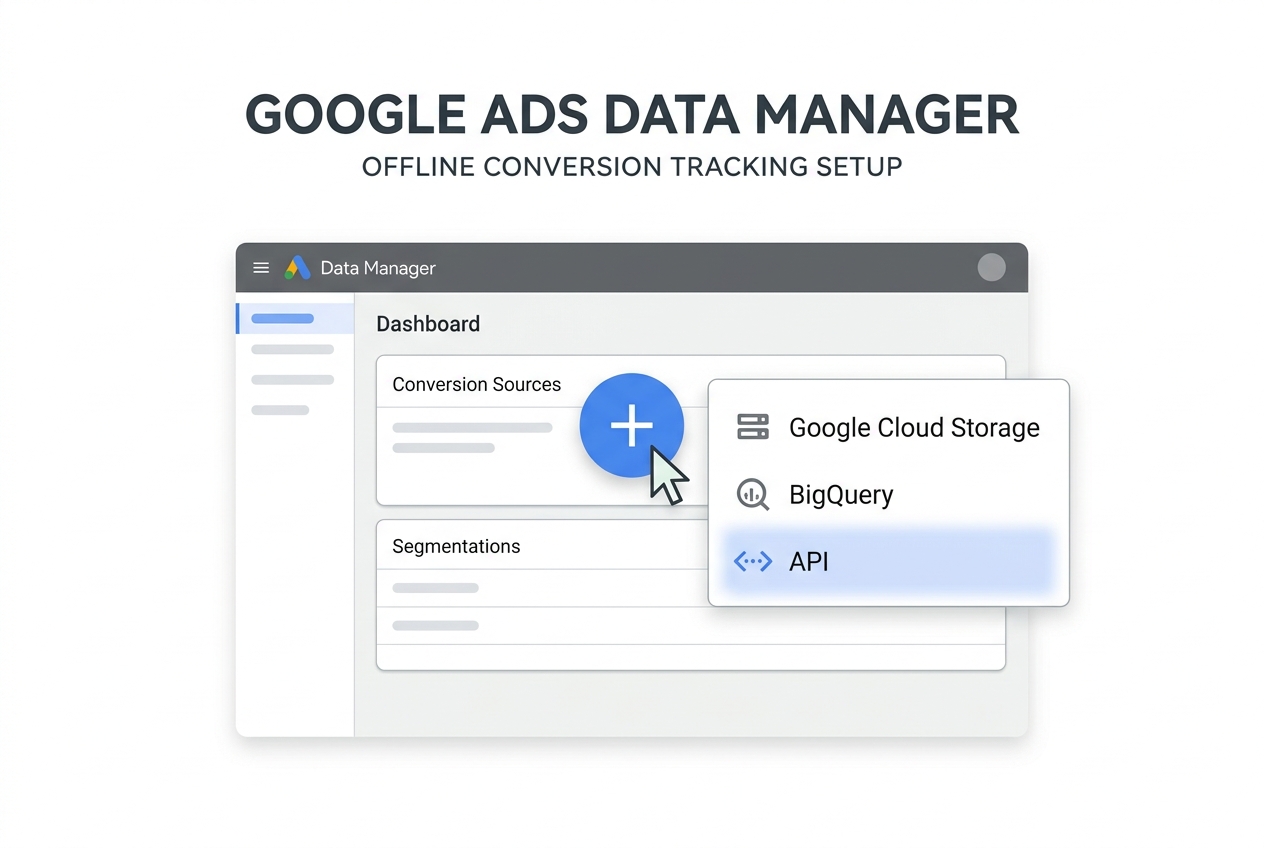
What to do: Navigate to Tools and Settings > Data Manager. Click the plus button to create a new data source. Choose "API" as your source type. You will be asked to define the schema. This is critical: you must select which identifiers you will be sending. Usually, this is a combination of Email (hashed), Phone (hashed), and GCLID or WBRAID/GBRAID for iOS-heavy traffic.
Why it matters: Data Manager acts as a translation layer. It allows Google to perform "Enhanced Conversions for Leads" matching. By setting this up in the UI first, you are telling Google how to interpret the JSON payloads you’ll be sending later. It creates a persistent mapping that makes your attribution more resilient to cookie deprecation.
Common pitfall: Selecting too few identifiers. If you only select GCLID, you are missing out on the primary benefit of Data Manager: its ability to match conversions via email or phone when the click ID is stripped by privacy browsers or iOS 14+ protections. Select all available identifiers that your CRM actually collects.
Step 3: Map your CRM fields to the Data Manager Schema
Now we get into the technical weeds. The Data Manager API expects data in a specific format that differs from the old OfflineUserConversionFeed service. You are now working with the data_source_feeds and user_data objects.
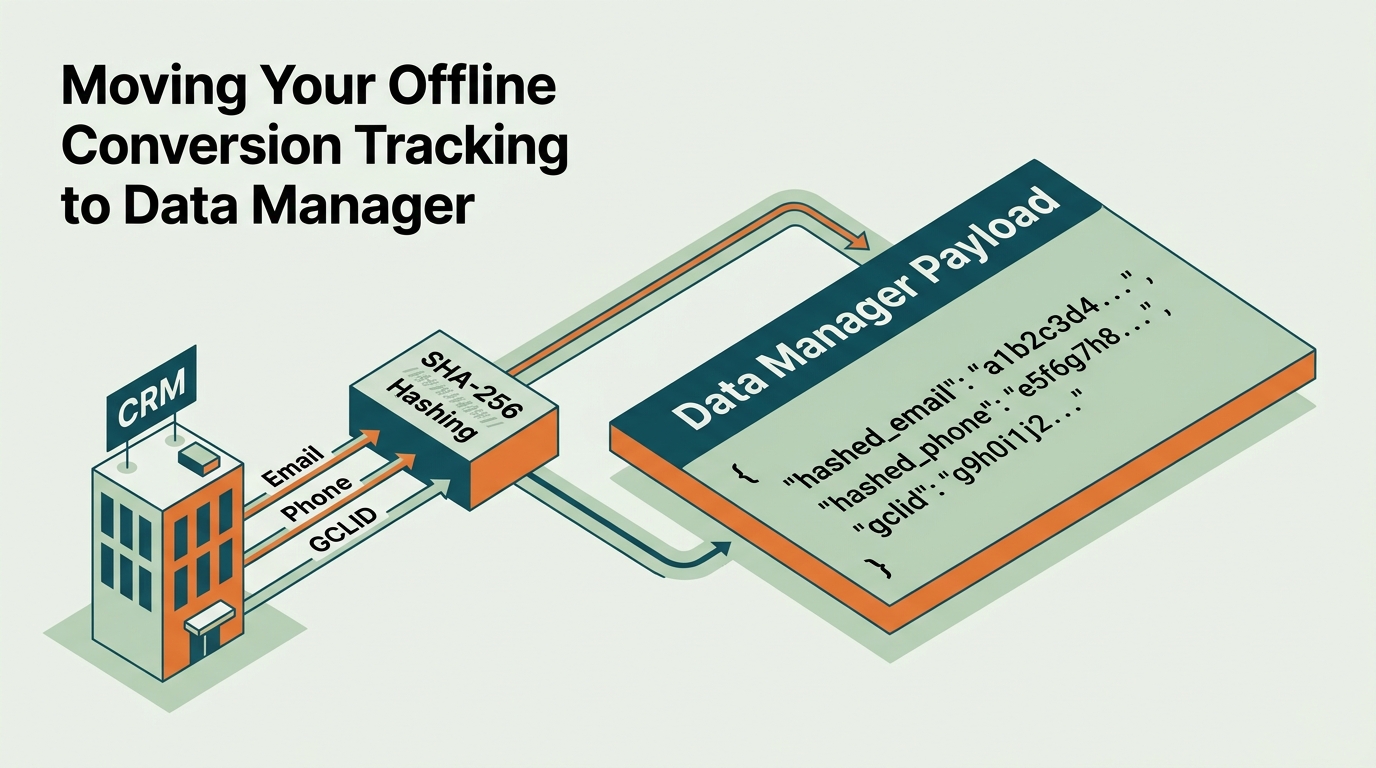
What to do: Extract your data from your CRM (Salesforce, HubSpot, or a custom SQL database). You must hash PII (Personally Identifiable Information) using SHA-256 before it leaves your server. Google will not accept raw email addresses.
Your JSON payload should look roughly like this:
{
  "user_identifiers": [
    {
      "hashed_email": "7b1c..."
    },
    {
      "hashed_phone_number": "3a2f..."
    }
  ],
  "conversion_time": "2026-05-15 14:30:00-05:00",
  "conversion_value": 150.00,
  "currency_code": "USD"
}
Why it matters: This mapping is what allows PMax to understand that a lead who came in via a Search ad but converted three weeks later via a YouTube Discovery ad is the same person. As noted in [S5], advanced analytics and AI-powered strategies now require this level of granular, clean data to function. Without the correct mapping, your conversion values will be misattributed, leading to skewed ROAS reporting.
Common pitfall: Timezone formatting. The legacy API was somewhat forgiving with date strings. The Data Manager API is strict. If you don't include the UTC offset (e.g., -05:00), the upload might be rejected or, worse, attributed to the wrong day, messing up your daily budget pacing.
Step 4: Execute the Migration Script and Handle Batching
In the old Google Ads API, many developers sent conversions one by one as they happened. While that worked, it was inefficient. The Data Manager API is built for batching. It prefers fewer, larger requests.
What to do: Update your middleware to collect conversions into batches (e.g., every hour or every 100 conversions). Use the uploadUserData method within the UserDataService.
If you are using a headless strategy as suggested by [S1], your backend should handle this asynchronously. You send the batch, receive a job_id, and then poll for the status of that job.
Why it matters: Batching reduces the risk of hitting API rate limits. Google Ads API has strict quotas on the number of requests per second. By moving to a batched Data Manager flow, you ensure that even during high-volume periods (like a Black Friday sale or a major product launch), your conversion data flows smoothly without being throttled.

Common pitfall: Ignoring the partial_failure flag. In the Data Manager API, a batch can be "successful" even if 50% of the conversions failed due to invalid emails or expired GCLIDs. You must programmatically check the partial_failure_error field in the response to identify and fix data quality issues in your CRM.
Step 5: Verification and Monitoring
You cannot just "set it and forget it." You need to verify that the data is actually reaching the conversion actions and being used for bidding.
What to do:
- Wait 24–48 hours after your first successful API upload.
- In Google Ads, go to Goals > Conversions.
- Find your offline conversion action and click on it.
- Check the Diagnostics tab. It should show "Receiving recent conversions."
- Look for the "Match Rate" metric. For Enhanced Conversions for Leads, a match rate above 40% is considered healthy; above 60% is excellent.
Why it matters: This is the only way to ensure your migration was successful. If the match rate is 0%, your hashing is likely broken or you're sending identifiers that Google doesn't recognize. As [S3] notes with TikTok's new ad updates, the trend across all platforms is toward tighter integration between commerce and search—if your data isn't matching, you're falling behind the curve.
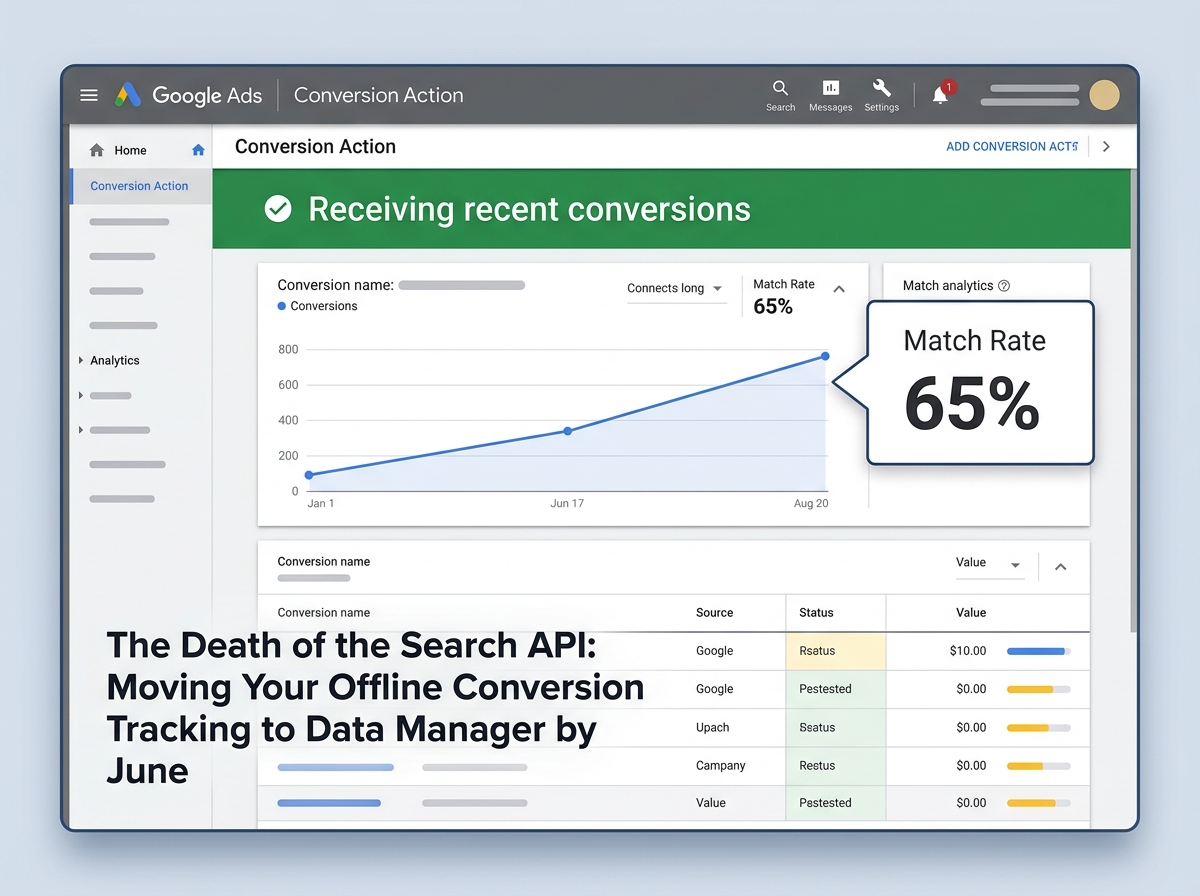
Common pitfall: Comparing API upload counts directly to "Conversions" in the UI. Remember that Google Ads uses conversion window settings. If you upload a conversion today that happened 20 days ago, it will be attributed back to the day of the click, not today. Use the "Conversions (by conv. time)" column to verify your numbers match your CRM exports.
Summary of the Migration Path
Moving to the Data Manager API is not an optional upgrade; it is a requirement for anyone serious about performance marketing on Google's ecosystem in 2026. By centralizing your data sources, you move away from the fragile "push and pray" method of the old Search API and toward a robust, privacy-first infrastructure.
This migration allows you to take full advantage of PMax's machine learning, which requires high-quality offline signals to steer clear of the low-quality traffic often found in broad-match search or junk display placements. If you haven't started this transition, your June deadline is effectively tomorrow in developer-time.
Three Tactics to Try Next
- Implement Profit-Based Bidding: Once your Data Manager API is stable, stop sending "Revenue" and start sending "Gross Profit" as your conversion value. This forces the algorithm to find your most margin-rich customers, not just the ones who spend the most.
- Segment by Lead Quality: Use the Data Manager API to send different conversion actions for "Qualified Lead," "Opportunity," and "Closed-Won." Use a "Value-Based Bidding" strategy to assign higher weights to the bottom-funnel actions.
- Cross-Platform Parity: Take the hashing logic you built for the Data Manager API and apply it to the TikTok Events API or Meta Conversions API. As [S3] suggests, the closer the tie between your CRM and the ad platform, the better your cross-channel attribution will be.
FAQ