
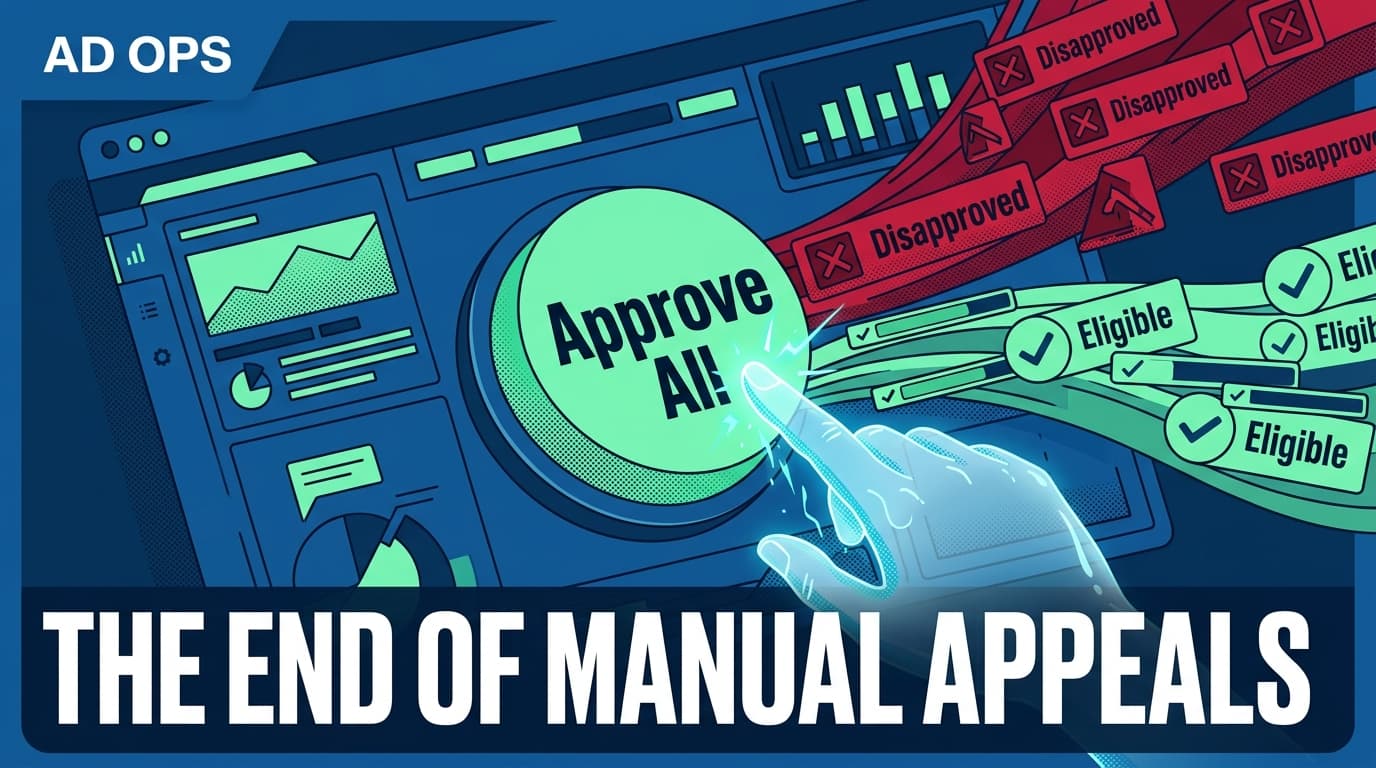
If you manage high-velocity retail campaigns or large-scale social-extension ads on Microsoft Advertising, you know the dread of the red exclamation mark. Automated policy triggers often flag perfectly compliant creative—especially when you are pushing hundreds of product variations for seasonal sales. Until now, resolving these meant a soul-crushing cycle of individual appeals. Microsoft’s new bulk appeal tool changes that, allowing buyers to select and dispute hundreds of disapprovals in a single batch.
By the end of this guide, you will have a streamlined workflow to clear your account of false-positive flags and get your budget back in market. You will need standard administrative access to your Microsoft Advertising account and a list of disapproved assets categorized by their policy violation type.
TL;DR
- Efficiency Shift: Move from manual, one-by-one appeals to batch processing up to 500 assets at once.
- Context Matters: Group your appeals by violation type (e.g., 'Misleading Content' vs. 'Pharmacy') to increase approval odds.
- Audit Trail: Use the 'Policy Appeals' tab to track status in real-time rather than waiting for email alerts.
Step 1: Identify and Filter Disapproved Assets by Policy Type
Before you can appeal at scale, you have to organize the chaos. Microsoft’s automated systems often flag ads for "Misleading Content" when the issue is simply a dynamic keyword insertion that didn't play nice with a specific landing page. You cannot treat every disapproval the same way. The first step is isolating the assets that share the same rejection reason.
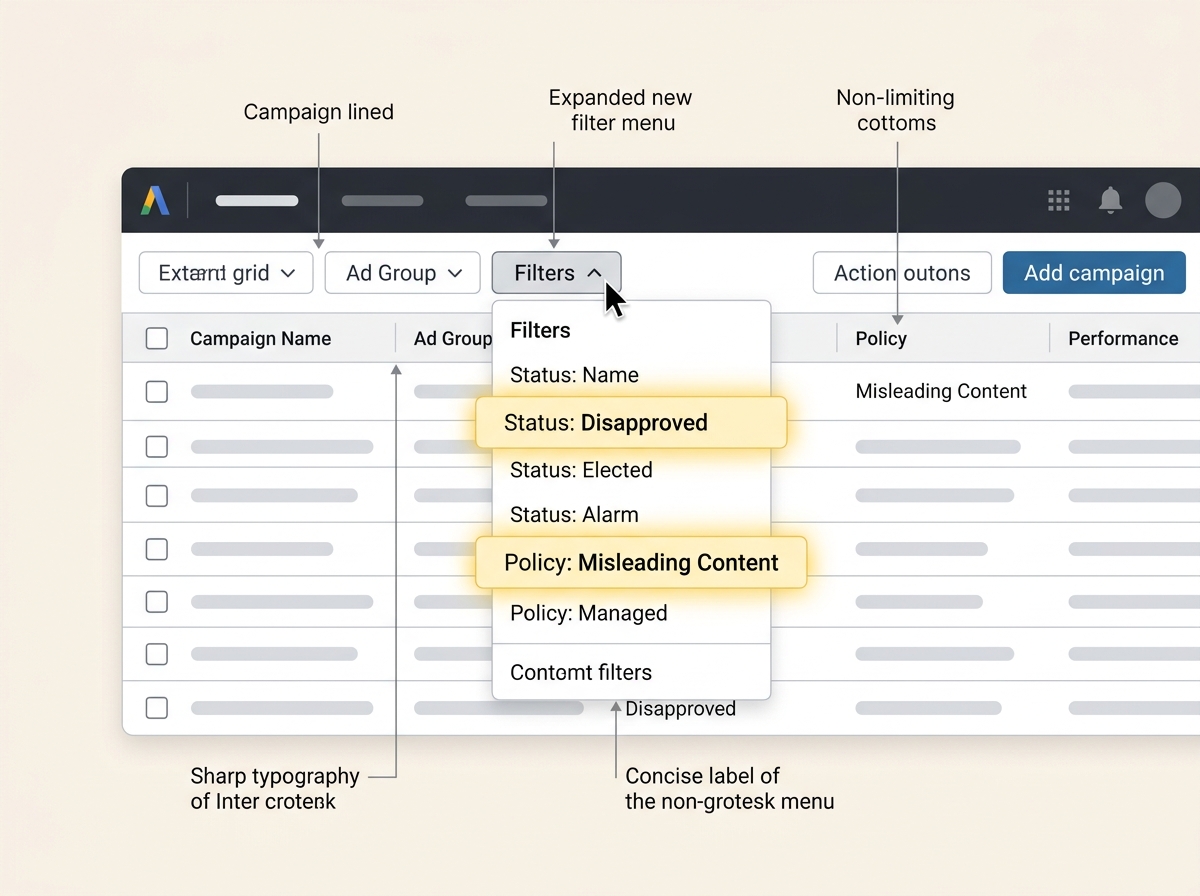
Navigate to the Ads & Extensions tab. Use the filter bar to select Approval Status > Disapproved. Once the list populates, add a secondary filter for Policy Violation. This is where the magic happens. If you try to bulk-appeal a "Trademark" violation alongside a "Malware" flag, you are asking for a manual review delay. Grouping them ensures that the Microsoft reviewer (or the secondary AI layer) sees a consistent argument for why the ads are actually compliant.
Why it matters: Microsoft’s internal review queue is often segmented by policy category. By submitting a clean batch of 50 ads all flagged for the same specific reason, you increase the likelihood of a faster, systemic reversal rather than a case-by-case debate.
Common Pitfall: Don't select every disapproved ad in your account at once. If you include ads that actually do violate policy (like a broken URL) in a bulk appeal for a different issue, the entire batch might be rejected, forcing you to start over.
Step 2: Access the Bulk Edit Menu and Initiate Appeal
Once you have filtered your list to a specific set of related violations, select the checkboxes for the ads you wish to dispute. You will see the blue action bar appear at the top of the grid. Click on Edit, and then select Appeal policy violation from the dropdown menu.
This opens the new bulk appeal interface. Unlike the old sidebar, this full-screen modal allows you to see the specific policy name and the number of ads affected. You will be prompted to choose an appeal reason. Generally, for high-velocity retail ads that were incorrectly flagged, you will select "Dispute the decision" rather than "I have made changes to comply."
Why it matters: Choosing "Dispute the decision" signals to Microsoft that your creative is intentional and compliant. This is critical for maintaining your account health score. If you constantly select "I have made changes" when you haven't actually edited the ad, the system may view it as a repeat violation.
Common Pitfall: Forgetting to check the "Select all rows" box if your disapproved list spans multiple pages. The tool defaults to only the ads visible on the current page (usually 50). Make sure you click the "Select all items across all pages" link if you have a massive fallout.
Step 3: Crafting the Batch Justification
This is the most overlooked part of the process. In the bulk appeal window, you have a text field to provide additional context. Do not leave this blank. Even though you are appealing at scale, a human or a high-level AI auditor will likely scan this text.
For social-extension campaigns—where you might be repurposing TikTok or Instagram creative that includes stylized text—explain that the text is part of the brand's visual identity and does not violate clarity standards. If you are a retailer like Disney (referencing [S4] their recent creator-led marketing shifts), you might explain that the creative uses licensed fan-generated content that follows specific brand safety guidelines. Be specific. Mention the landing page URL and why it satisfies the policy in question.

Why it matters: Context reduces the "intelligence-versus-agency split" mentioned in recent AI impact reports [S3]. Providing clear, human-readable justification helps the platform’s automated systems learn that your specific brand style is a false positive, potentially preventing future flags.
Common Pitfall: Using aggressive or frustrated language. The reviewers are following a script. If you write "This is a mistake, fix it now," you aren't helping them help you. Use clinical, policy-focused language: "These assets comply with the 'Financial Products' policy as all required disclosures are present on the landing page linked."
Step 4: Submitting and Monitoring the Appeals Queue
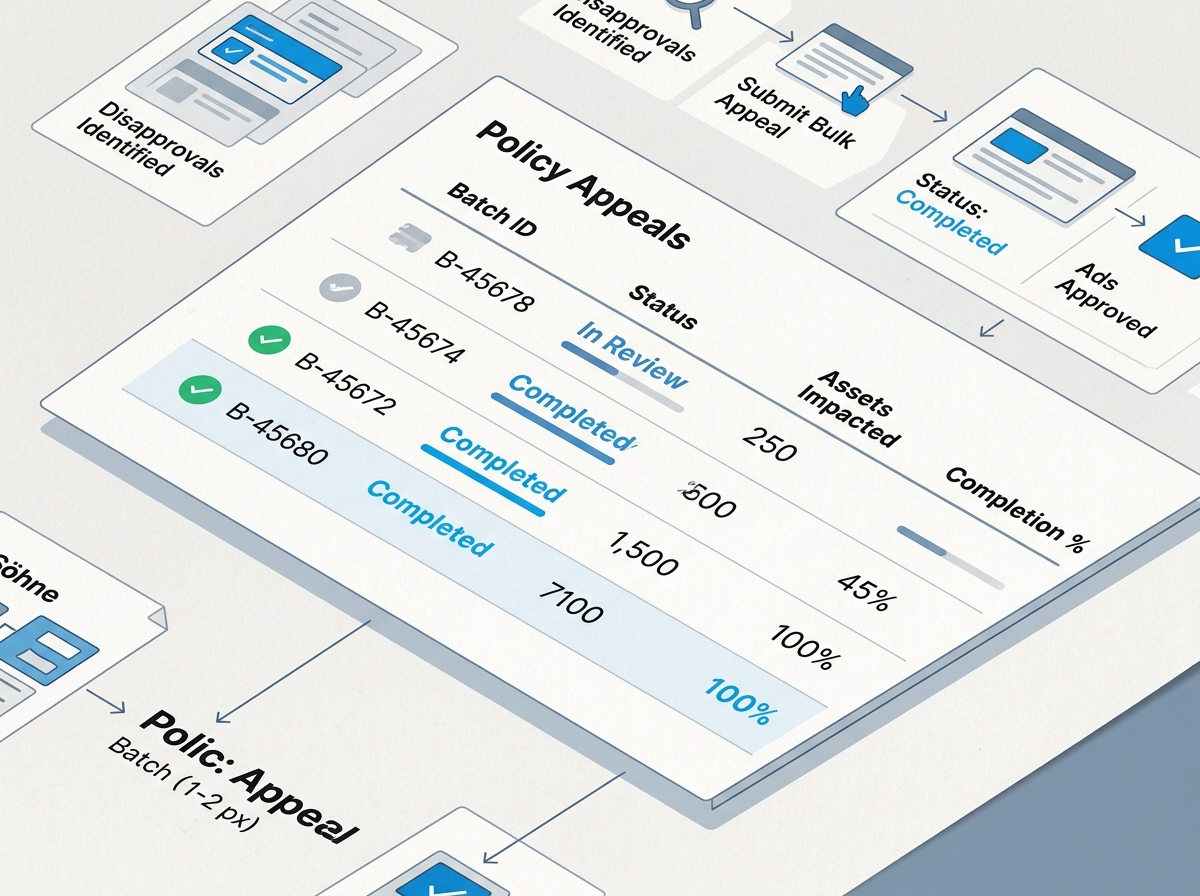
After hitting submit, your ads won't immediately turn green. They will move into a "Pending Appeal" status. You can track this in the Tools > Policy Appeals section of the Microsoft Advertising interface. This dashboard is a recent addition that provides a consolidated view of all your disputes, their current status, and the estimated time to completion.
Typically, bulk appeals are processed within 24 to 48 hours, though high-volume accounts may see faster turnarounds. If you are managing a tight schedule—perhaps following a strict social media posting cadence like those suggested in [S1]—you need to check this dashboard daily. Do not rely on email notifications; they are notoriously laggy and often get buried in ad-ops inboxes.
Why it matters: Monitoring the queue allows you to spot patterns. If 90% of your bulk appeal is approved but 10% is rejected, you know exactly which creative elements are the true sticking points. This allows you to pivot your creative strategy for the next campaign cycle.
Common Pitfall: Resubmitting the same ads while an appeal is still pending. This creates duplicate tickets in Microsoft’s system and can actually reset your place in the queue. Patience is a tactical requirement here.
Step 5: Verification and Post-Approval Audit
How do you know it worked? Once the status in the Policy Appeals dashboard changes to "Approved," your ads will automatically transition to "Eligible." However, you must verify that they are actually serving. Go back to the Ads tab and check the Delivery column. If it says "Eligible" but shows zero impressions after 6 hours, you may have a secondary conflict—such as a bid that is too low for the newly cleared keywords or a targeting overlap.
It is also worth checking your Quality Score. Sometimes, ads that have been caught in a disapproval loop return with a lower-than-expected score because the system hasn't gathered fresh performance data. A quick way to jumpstart these is to slightly increase the bid for the first 24 hours post-approval to force the algorithm to re-evaluate the ad's relevance.
Why it matters: An approved ad that isn't serving is just as useless as a disapproved one. Verification ensures that your bulk effort actually translates into market presence and ROI.

Three Related Tactics to Try Next
- Automated Rules for Disapprovals: Set up a Microsoft Advertising automated rule that sends you a high-priority email alert the moment more than 10 ads in a single campaign are disapproved. This allows you to catch and bulk-appeal issues before they tank your weekly performance.
- Landing Page Pre-Scan: Before launching a massive retail batch, run one or two "canary" ads through the system. If they get flagged, you can fix the landing page issue before the other 998 ads are even uploaded, saving you the need for a bulk appeal entirely.
- Cross-Platform Policy Alignment: If you are running the same creative on Google and Microsoft, compare your disapproval reasons. Often, a flag on Microsoft for "Low Quality Image" is a sign that your compression settings are too aggressive, which might also be hurting your reach on Google, even if they haven't flagged it yet. Use Microsoft's strictness as a diagnostic tool for your broader search strategy.
Managing ad policy doesn't have to be a manual bottleneck. By using the bulk appeal tool, you treat policy management as a data-entry task rather than a series of crises. As AI's impact on measurement and platform automation continues to grow [S3], mastering these bulk workflows is the only way for agency strategists to stay ahead of the volume.
FAQ