
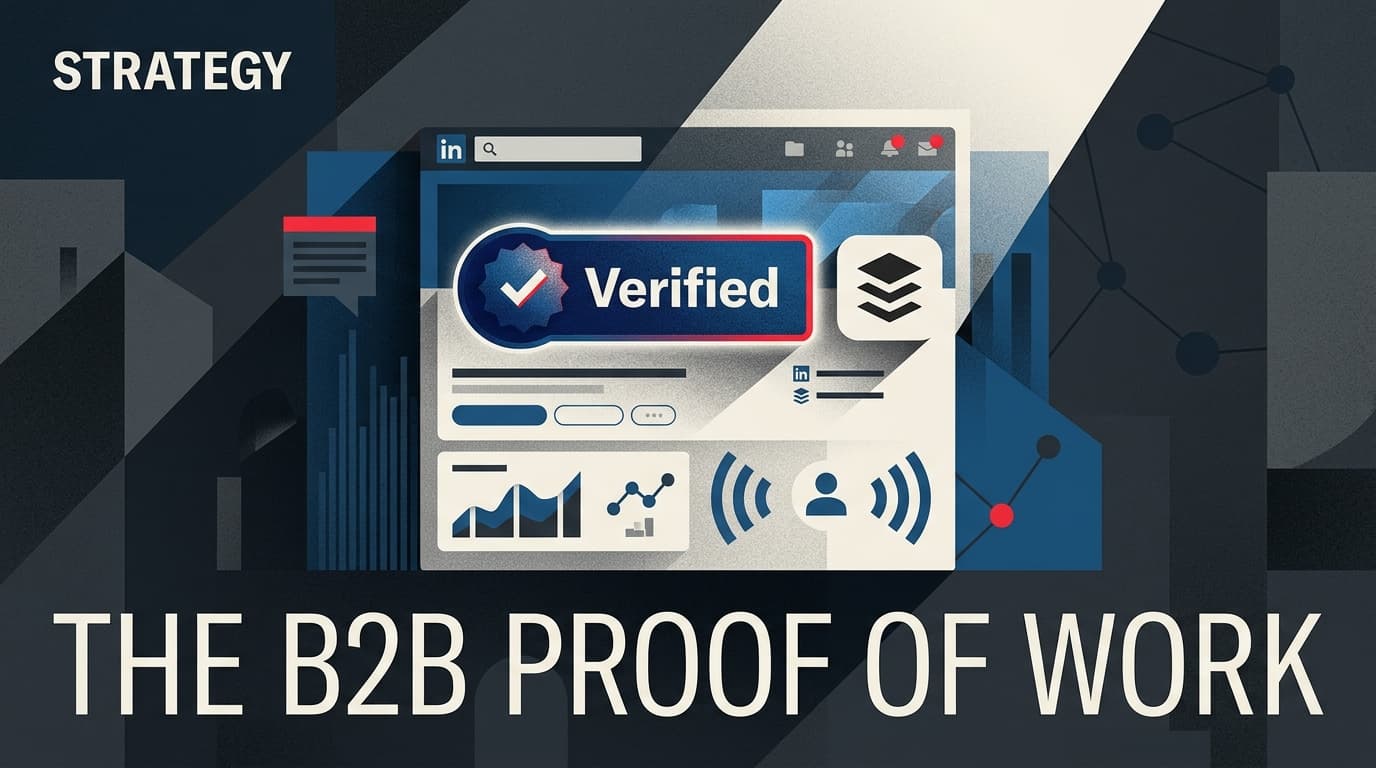
LinkedIn is no longer just a digital resume; it has morphed into a verification layer for B2B expertise. As AI-generated content floods the feed, prospects are looking for signals of human-led consistency. The platform's recent rollout of the Connected Apps feature—specifically when paired with a third-party scheduler like Buffer—allows you to do more than just post. It allows you to verify your publishing history directly on your profile, effectively creating a 'proof of work' signal that separates practitioners from pretenders.
By the end of this guide, you will have a fully integrated LinkedIn profile that displays verified publishing activity, providing immediate social proof to any agency prospect or brand lead who visits your page. You will need an active LinkedIn personal profile, a Buffer account (free or paid), and approximately 20 minutes of configuration time.
Why it matters: In an era where Generative Engine Optimization (GEO) is challenging traditional search authority, as noted by Tom Critchlow in a July 2026 Search Engine Journal report, owned social authority is your primary hedge against AI search volatility. Verified activity signals to both the algorithm and the human reader that you are a consistent, reliable source of industry insight.
Key takeaways:
- Verification is the new vanity metric: Verified third-party posting history carries more weight than raw follower counts in B2B trust-building.
- API transparency builds trust: Using the Connected Apps framework shows prospects you use professional-grade tools to manage your presence.
- Audit trail as authority: A visible history of scheduled, high-quality content serves as a portfolio of your strategic thinking.
Step 1: Audit your LinkedIn Data Privacy settings
Before you can connect Buffer, you must ensure your profile is configured to allow third-party data handshakes. LinkedIn has historically been a walled garden, but the new Connected Apps initiative represents a shift toward a more open ecosystem. You need to ensure your account isn't blocking external API hooks.
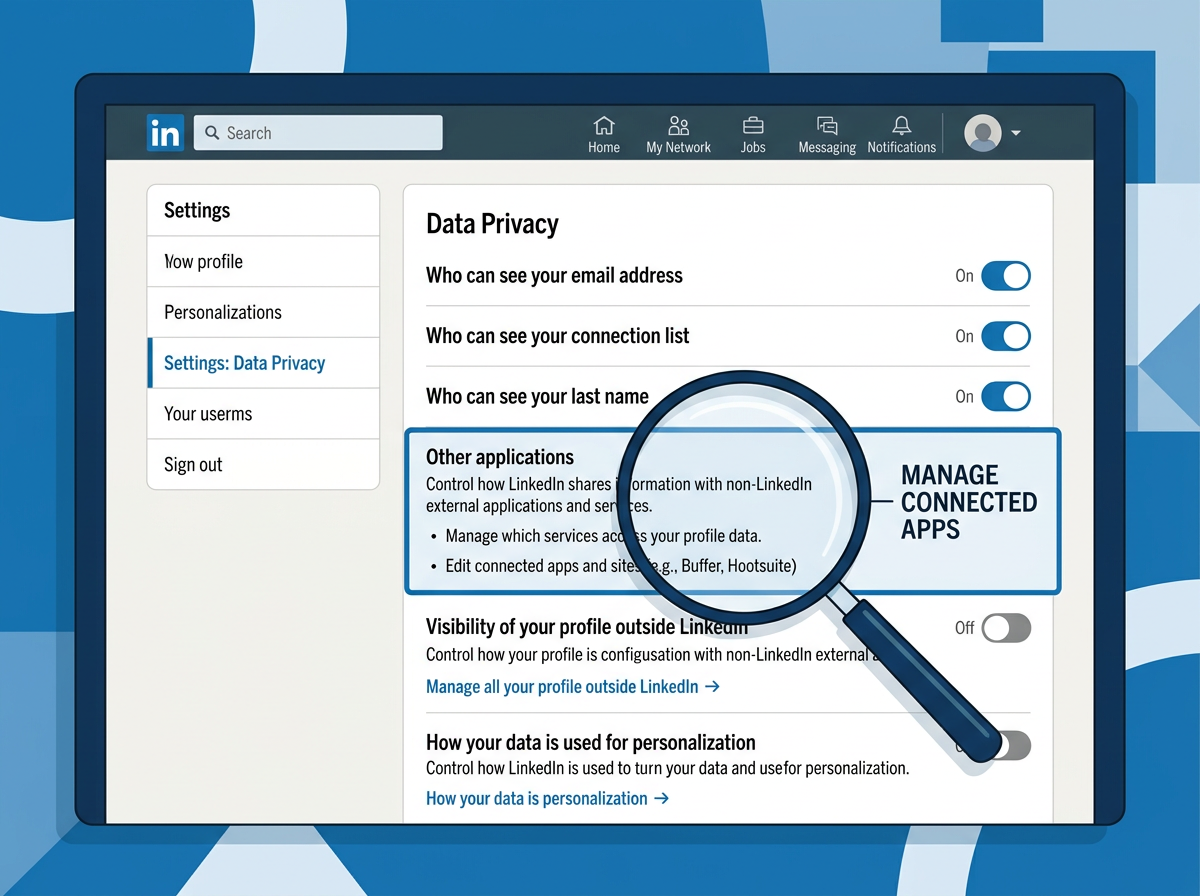
Navigate to your LinkedIn 'Settings & Privacy' menu. Under the 'Data Privacy' tab, look for 'Other applications.' This is where the platform tracks which external services have permission to view your profile data and post on your behalf. If you have old, defunct integrations from years ago—think old CRM connectors or dead automation tools—clear them out now. A clean slate ensures the Buffer handshake doesn't conflict with legacy permissions.
Why it matters: Security is a major concern for B2B leads. If your profile shows a dozen messy, outdated app connections, it signals a lack of digital hygiene. Conversely, a focused list of professional tools like Buffer or HubSpot suggests a sophisticated, managed approach to social media.
Common pitfall: Many users forget to check if their 'Work Email' is verified. If your LinkedIn account is still tied to a personal Gmail but you’re trying to connect a business-grade Buffer instance, you may trigger a security flag. Ensure your primary email matches your professional identity.
Step 2: Configure the Buffer LinkedIn Integration
Now, head over to your Buffer dashboard. If you haven't already connected LinkedIn, you'll select 'Add Channel' and choose 'LinkedIn Profile.' It’s important to note that for the 'Connected Apps' verification to work effectively, you should connect your Personal Profile rather than just a Company Page. In B2B, authority is personal; people follow founders and strategists, not logos.
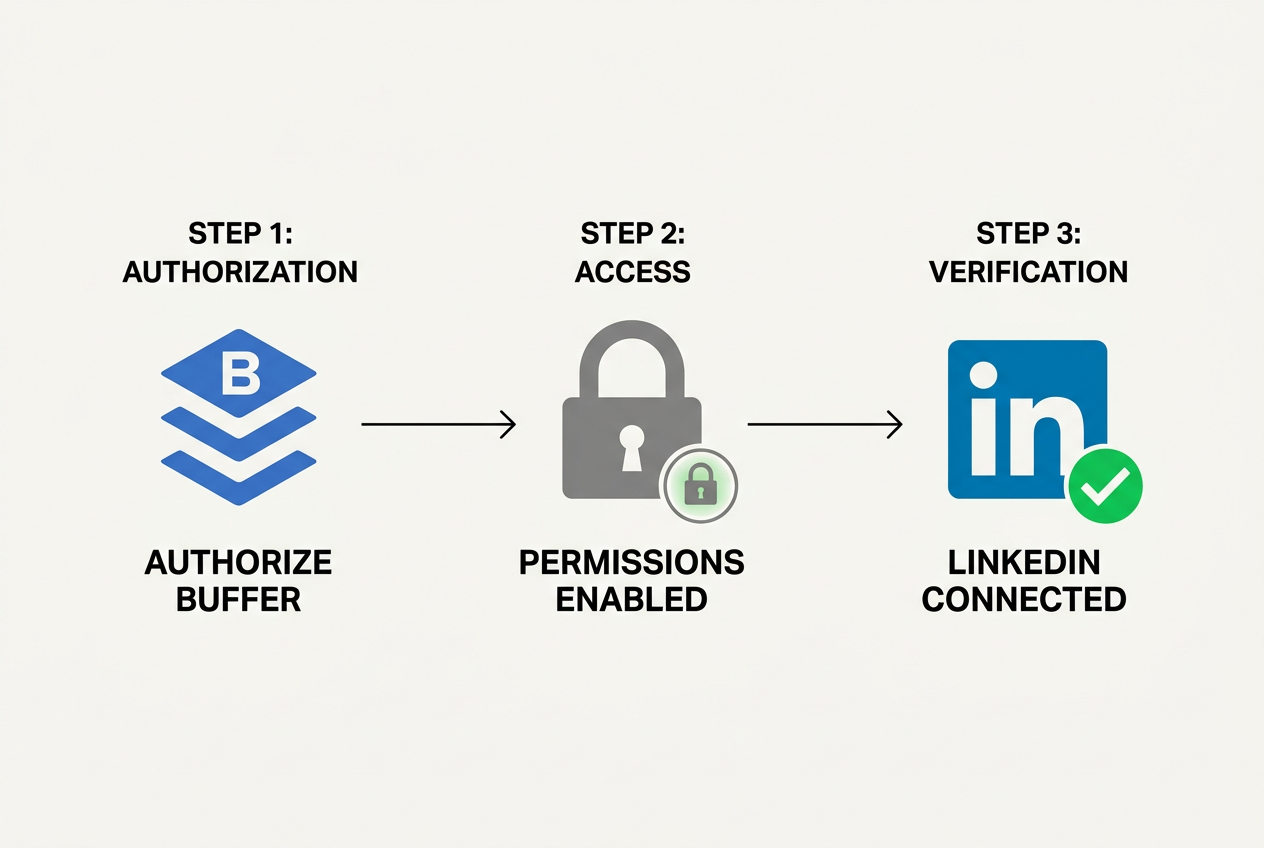
When the OAuth popup appears, pay close attention to the permissions requested. Buffer will ask for w_member_social and r_liteprofile. These allow the app to post and to read basic profile information. The new 'Connected Apps' feature relies on these permissions to generate the 'Posted via Buffer' metadata that can now be surfaced in specific profile sections and search results.
Why it matters: This isn't just about scheduling; it's about the metadata. When you post through a verified partner, LinkedIn's backend recognizes the content as coming from a professional workflow. In the context of Google's recent Smart Bidding updates (July 2026), where intent and signal quality are paramount, these platform-level verifications are becoming the 'Schema.org' of social media.
Common pitfall: Selecting 'Company Page' only. While great for brand awareness, Company Page posts don't build the same individual 'Social Authority' score that a personal profile does. To verify your authority, you must connect the personal account.
Step 3: Enable the 'Connected Apps' visibility on your profile
This is the technical heart of the process. Once Buffer is linked, return to LinkedIn and go to your profile view. Click 'Edit profile' and scroll to the 'Integrations' or 'Connected Apps' display section (this rollout is currently hit-or-miss for some regions, but accessible to most via the 'Services' menu).
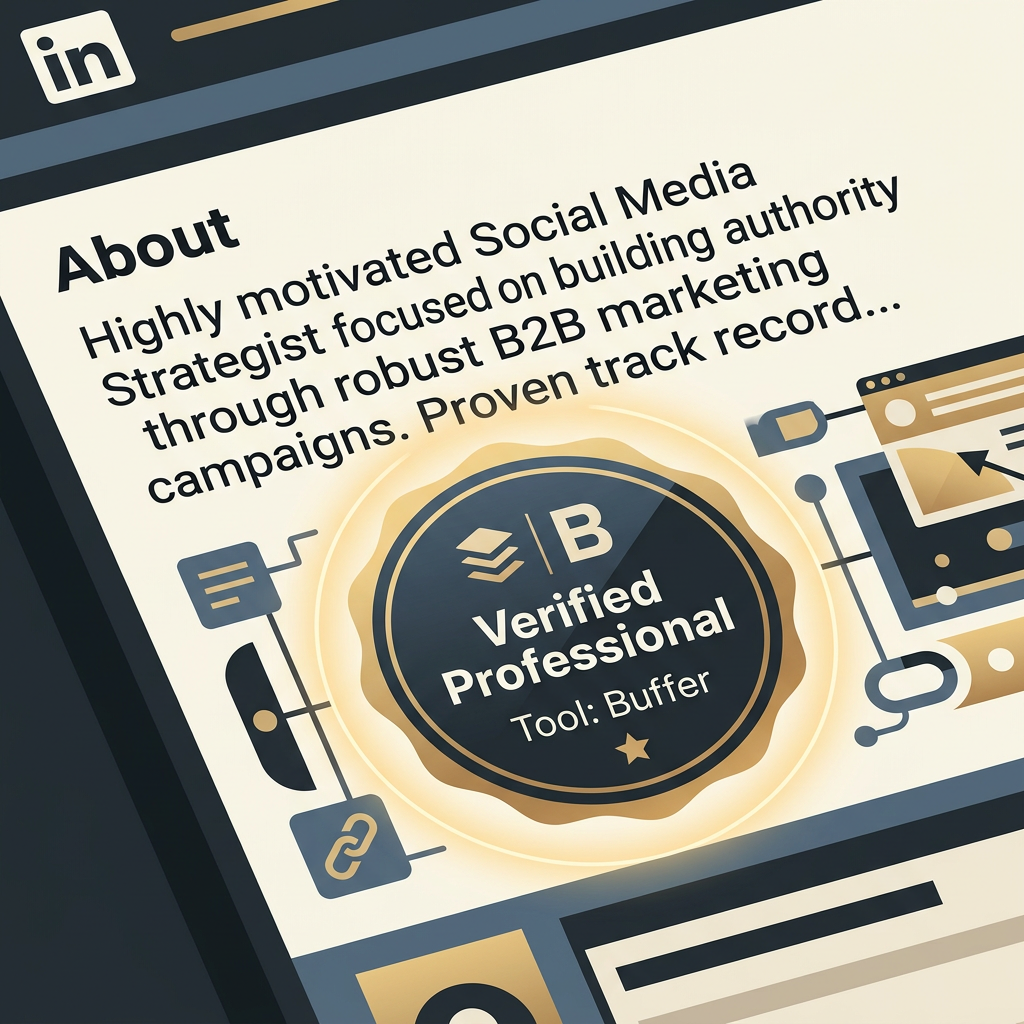
You want to toggle the visibility of your 'Professional Tools.' By opting in, you are allowing LinkedIn to display a badge or a line of text in your 'About' or 'Experience' section that confirms you use Buffer to manage your professional presence. This is the 'Proof of Work'—it shows you have a structured, governed process for your thought leadership.
Why it matters: It acts as a subtle filter. When a prospect sees that you use professional scheduling and analytics tools, they subconsciously categorize you as a 'Pro' rather than a 'Hobbyist.' It’s the digital equivalent of an architect showing up with a professional blueprint rather than a sketch on a napkin.
Common pitfall: Hiding the connection because of an old-school belief that 'automated posts get less reach.' The LinkedIn algorithm in 2026 has moved past penalizing API posts, provided the content is original and engages the audience. The transparency of the connection now outweighs the perceived 'organic' benefit of manual posting.
Step 4: Establish a 'Proof of Work' publishing cadence
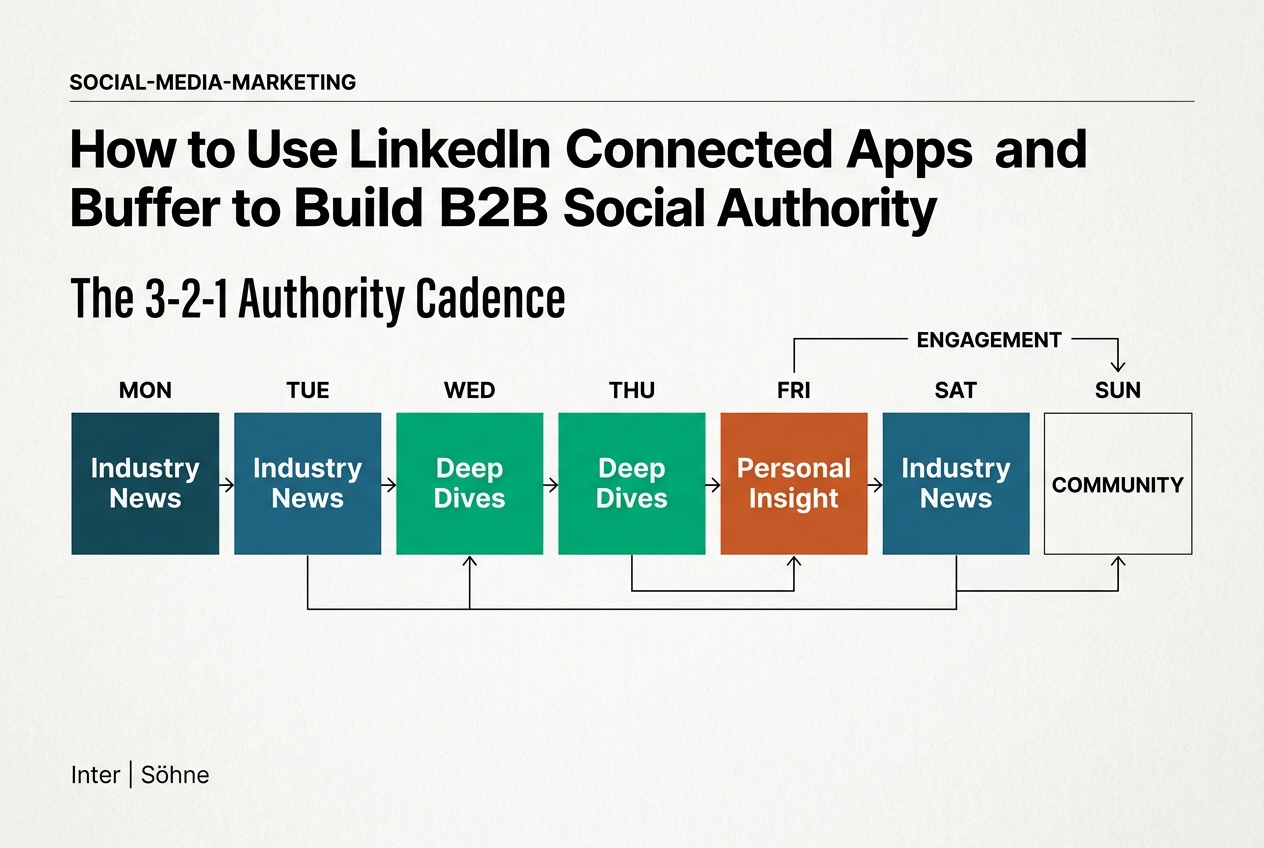
Verification is useless without a history to verify. You need to use Buffer to establish a consistent trail of high-value B2B content. Aim for a '3-2-1' cadence: three industry news shares with your unique commentary, two deep-dive original pieces (like this guide), and one personal insight about your agency's operations.
As you schedule these in Buffer, use the 'Customized for LinkedIn' feature. Don't cross-post the exact same text from X or Instagram. LinkedIn’s current algorithm (per June 2026 internal benchmarks) heavily weights 'document dwell time.' Use Buffer to upload PDF carousels or long-form text posts that keep users on the page. Each of these posts, when delivered via the Connected App, builds your verified history.
Why it matters: Consistency is the rarest commodity in B2B social. By showing a verified 6-month history of weekly posts, you prove to a prospect that you are committed to your craft. It’s a trailing indicator of reliability.
Common pitfall: Over-automating. Buffer is the delivery vehicle, not the writer. If you use AI to generate 30 days of generic 'In today's fast-paced landscape' posts, the verification badge will only serve to verify that you are a spammer. Keep the voice human.
Step 5: Verify the integration and monitor Social Authority signals
How do you know it’s working? Check your 'Profile Analytics.' You should see a new segment in your 'Search Appearances' that identifies how many people found you via 'Professional Services' or 'Verified Creators.' Additionally, look at your posts on the mobile app; you should see the 'Posted via Buffer' or a similar partner tag in the metadata if you are viewing from an admin perspective, and a 'Verified Professional' signal in the 'About' section for external viewers.
Ask a colleague to view your profile from their account. They should see the Buffer integration listed under your 'Skills' or 'Tools' if you've mapped it correctly. This confirms that the 'Proof of Work' signal is live and visible to the public.
Why it matters: Data-driven validation ensures you aren't just shouting into the void. If your search appearances for 'Agency Founder' or 'Marketing Consultant' increase after enabling these features, you've successfully signaled your relevance to the LinkedIn indexing engine.
Common pitfall: Ignoring the 'Activity' tab. Even with a verified app connection, if you don't respond to comments, the 'Authority' signal remains hollow. Verification gets them to the profile; engagement gets them to the DM.
Three related tactics to try next
Once you've mastered the Buffer-LinkedIn connection, consider these advanced moves to further solidify your B2B standing:
- Map Buffer Analytics to LinkedIn Thought Leader Ads: Use the data from your verified posts to identify which content deserves a paid boost. Since the posts are already 'verified' via the API, they often see lower CPMs in the Thought Leader Ad format because the engagement signals are cleaner.
- Create a 'Verified Workflow' Featured Section: Take a screenshot of your Buffer calendar (blurred for sensitive info) and add it to your LinkedIn 'Featured' section. Title it 'How I Stay Consistent.' This meta-commentary on your process doubles down on the 'Proof of Work' concept.
- Leverage the 'Things to Do' Beta for Events: If you are an agency hosting webinars, use the new Google Ads 'Things to Do' beta (referenced in [S5]) and link it back to your verified LinkedIn profile. The cross-platform signal—from a Google Search event to a verified LinkedIn expert—creates a powerful trust loop that most competitors are ignoring.
By treating your LinkedIn profile as a verified node in a larger professional ecosystem, you move beyond simple 'social media management.' You are building a durable, technical foundation for B2B authority that survives algorithm shifts and AI noise. Start today by auditing those settings; your future prospects are already looking for the proof.
FAQ